
Browser extensions can be genuinely useful. They can help manage passwords, translate pages, save articles, block unwanted content, organize tabs, or add features that a browser does not provide on its own. The problem is that an extension has access to parts of your browsing environment, and a poorly designed or malicious extension can create risks that are not obvious when you first install it. A suspicious extension does not always announce itself with a warning or an obvious sign of trouble.
Sometimes the warning signs are subtle. Your browser may suddenly show unfamiliar advertisements, search results may look different, new tabs may open unexpectedly, or a website you normally trust may begin redirecting somewhere else. In other cases, nothing appears to happen at all, which can make the situation harder to assess. If you installed an extension from an unfamiliar developer, clicked an unexpected installation prompt, or later realized that an extension has questionable permissions, it is worth checking what changed before simply continuing to browse.
The good news is that you do not need to assume that installing one questionable browser extension has compromised your entire computer. A careful review can help you determine what the extension changed, whether it still has access to your browser, and whether you need to take additional precautions. The most important thing is to work through the situation methodically instead of immediately downloading several security programs or changing random settings.
Start By Removing The Extension If You Do Not Trust It
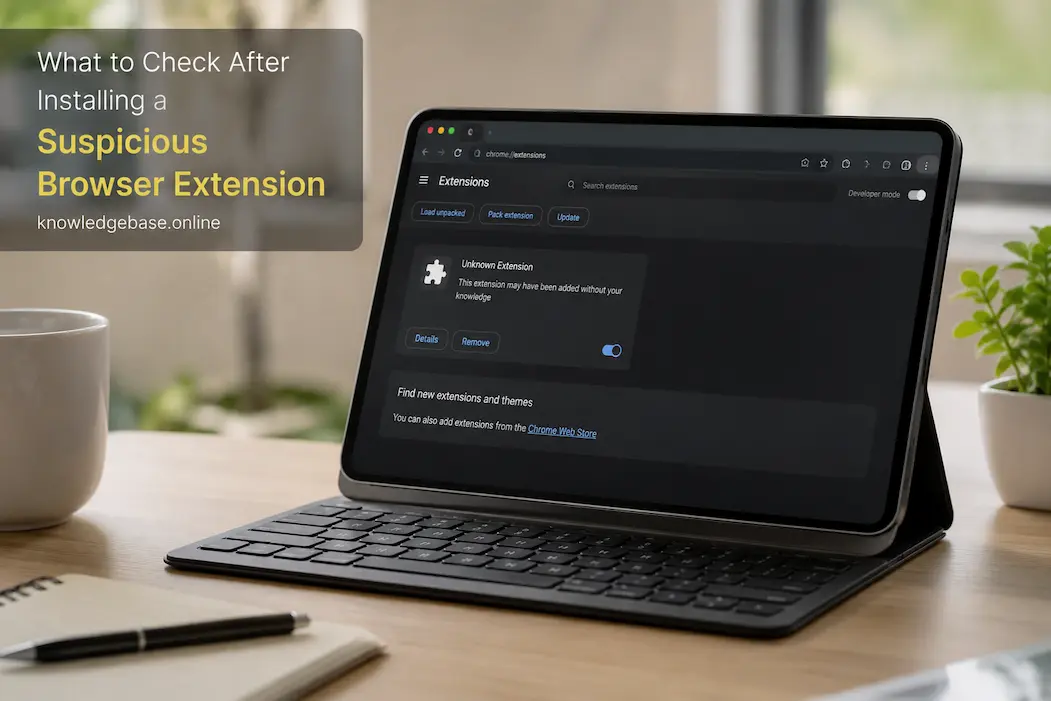
If you already have a strong reason to believe that an extension is suspicious, the first practical step is usually to remove it from the browser. There is little benefit in leaving an extension active while you investigate its behavior, especially if you do not recognize the developer or remember installing it. Open your browser’s extension or add-on management page and look for the unfamiliar item. Check its name, publisher, installation date if available, and the permissions it requested before deciding what to do next.
Do not interact with the extension itself just to see what it does. A suspicious extension may have been designed to encourage you to click buttons, visit a particular website, install another application, or provide additional information. If you do not need it and cannot confirm it is legitimate, it is generally safer to remove it than to experiment with it. Take a screenshot or write down its name first if you think you may need the information later for further investigation or reporting.
After removing it, completely close the browser and reopen it. This does not guarantee that everything associated with the extension has disappeared, but it gives you a clean point from which to begin checking the browser. If the suspicious behavior immediately stops after removal, that is useful evidence, although it does not prove that the extension was responsible for every change you noticed.
Check Whether The Extension Was Actually The Problem
Before assuming the extension caused a particular problem, think about when the behavior started. If your search engine changed immediately after installing the extension, the connection is worth investigating. If you installed unrelated software and then saw advertisements several days later, the extension may not be responsible. Establishing a rough timeline can prevent you from making unnecessary changes to your computer.
Pay particular attention to changes that appeared directly after installation. A new homepage, an unfamiliar search provider, unexpected pop-ups, strange redirects, additional extensions, or repeated requests for permissions are all reasons to investigate further. None of these signs alone proves that malware is present, but several appearing together deserve more attention than an isolated browser glitch.
Review The Extension’s Permissions
Browser permissions are one of the most useful clues when evaluating an extension. Depending on the browser and the extension, an add-on may request permission to read or modify information on websites you visit, interact with tabs, access browsing activity, or communicate with other parts of the browser. Some legitimate extensions genuinely require broad permissions because of what they are designed to do, so a long permissions list is not automatically evidence of malicious behavior.
The important question is whether the requested access makes sense for the extension’s stated purpose. A simple calculator extension, for example, should make you question why it needs extensive access to websites and browsing data. A password manager or security extension may reasonably need more significant permissions because its function involves interacting with websites. Context matters more than the number of permissions alone.
If an extension requests access that seems unrelated to its purpose, treat that as a warning sign. You should also be cautious when an extension suddenly asks for additional permissions after it has already been installed. Developers can update extensions over time, and legitimate updates can sometimes require broader access, but an unexpected permission change is a good reason to review whether you still want the extension installed.
Look At What Changed In Your Browser
After removing a suspicious extension, check the browser settings that may have been affected. Start with the default search engine and homepage, because unwanted browser software often targets these common areas. Please ensure that the search provider is the one you intentionally selected and that no unfamiliar websites have been added as startup pages.
Next, look at your new-tab behavior, notification permissions, and site settings. An unwanted extension may encourage changes that cause websites to send notifications or redirect you to unfamiliar pages. Browser notifications are particularly easy to overlook because they can continue appearing even after you have forgotten which website was allowed to send them.
Also review your installed extensions again. If you find another extension that you do not recognize, investigate it separately rather than assuming it is legitimate because it appears alongside familiar add-ons. Some unwanted software attempts to install multiple components so that removing one item does not completely solve the problem.
Check Your Default Search And Homepage
A changed search engine can be one of the clearest signs that something modified your browser configuration. Search for the setting manually rather than trusting the results of an unfamiliar page. If the browser has switched to a provider you did not select, change it back to your preferred option and check whether the change remains after restarting the browser.
Do the same for your homepage and startup pages. Remove any unfamiliar addresses and ensure that only legitimate pages are configured to open automatically. If the browser keeps changing the settings back after you correct them, that is more concerning because something may still be modifying the configuration.
Do not install another extension that claims it can “clean” your browser unless you have a good reason to trust it. Adding another browser extension to solve a browser-extension problem can complicate the situation. Start with the browser’s own settings and security features whenever possible.
Check For Unexpected Redirects And Pop-Ups
Open a few websites that you normally use and pay attention to whether the browser behaves as expected. You do not need to visit suspicious websites as a test. Use familiar sites and observe whether pages load at the expected addresses, whether searches behave normally, and whether new tabs or windows appear without your request.
Unexpected redirects are particularly worth noting. If you click a normal search result and repeatedly go through unfamiliar domains before reaching the intended page, investigate further. One unusual redirect can sometimes be caused by a website or network problem, but repeated behavior across different sites is more significant.
Pop-ups and advertisements can also provide clues, especially if they appear on websites that previously did not show them. However, remember that some websites naturally contain advertising. The useful distinction is whether advertisements are appearing in places where they normally do not, or whether the browser is opening advertising pages without your interaction.
Review Your Browser’s Notification Permissions
Website notifications can be useful, but they can also become a source of persistent unwanted messages. Open the browser’s notification or site-permission settings and review which websites are allowed to send notifications. Remove permissions for websites you do not recognize or no longer want to hear from.
This is worth checking even if the suspicious extension has already been removed. An extension may have directed you toward a website that asked for notification permission, and granting that permission is separate from the extension itself. As a result, removing the extension does not necessarily remove every browser permission you granted while it was installed.
If you are unsure about a website in the notification list, search for information about the domain before allowing it to remain. You do not need to approve every notification request that appears while browsing. In general, only allow notifications from sites where you understand why you need them.
Check Your Downloads And Recently Installed Software
A suspicious browser extension does not necessarily mean that additional software was installed, but it is worth checking if you noticed unusual behavior. Look through your recent downloads and see whether unfamiliar files appeared around the same time you installed the extension. Pay particular attention to executable installers or programs you do not remember downloading.
You should also review recently installed applications through your operating system’s normal application settings. Look for software installed around the same date as the browser extension. An unfamiliar program does not automatically mean it is malicious, because legitimate software can sometimes be installed as part of another setup process, but anything you do not recognize deserves investigation.
Do not immediately delete random system files because their names look unfamiliar. Windows and other operating systems contain many legitimate components with technical names. If you find an unfamiliar application, research its exact name and publisher first and use reputable security or software documentation sources to determine what it is.
Review Your Browser Sync Settings
If you use browser synchronization, check whether the suspicious extension or unwanted browser settings have been synchronized across your other devices. Browser sync can make extensions, bookmarks, settings, passwords, and other information available across multiple devices depending on how your account is configured.
This does not mean synchronization is dangerous. In fact, it is a useful feature for many people. The concern is that an unwanted change made on one device may appear elsewhere. Check your other computers or phones to see whether the extension was installed there as well, particularly if you use the same browser account across devices.
If you find the suspicious extension on another device, remove it there too and review the relevant browser settings. This is one reason it is useful to know which extensions you actually use. A smaller, well-understood collection is much easier to monitor than a long list of add-ons that you installed and subsequently forgot about.
Think Carefully About Saved Passwords And Sensitive Accounts
Removing a suspicious extension does not automatically mean that someone accessed your online accounts. However, if the extension had unusually broad access to browsing information or you entered sensitive information while it was active, consider whether additional precautions are appropriate.
Start with the accounts that matter most, such as your primary email account, financial services, cloud storage, work accounts, and other services that contain valuable personal information. Review recent login activity where the service provides it and look for unfamiliar devices, locations, or sessions.
If you find suspicious account activity, change the relevant password from a device and browser you trust. Enable multi-factor authentication where available, and sign out of sessions you do not recognize. You do not need to change every password you have ever created simply because you installed a questionable extension, but accounts that may realistically have been exposed deserve priority.
Do Not Assume Your Passwords Were Stolen
It is easy to panic after discovering a suspicious extension, especially when it had access to web pages. But an extension being suspicious does not automatically prove that it captured your passwords or personal information. Avoid turning a possibility into a certainty without evidence.
Instead, use the situation as an opportunity to review account security. Review login histories, make sure important accounts use strong unique passwords, and enable additional authentication protection where practical. If you find actual signs of unauthorized access, respond to them rather than making decisions based solely on fear.
Run A Security Scan If The Behavior Continues
If browser problems continue after removing the extension and reviewing the browser settings, it may be reasonable to run a security scan using the security software already provided by your operating system or another reputable security solution. Keep the software updated before running the scan so it has access to current detection information.
A scan is particularly sensible if you notice problems outside the browser as well. Unexplained applications, repeated security warnings, unusual system behavior, or files appearing without your involvement can indicate that the issue is broader than a single extension.
Avoid installing several unknown “PC cleaners” or “browser repair” programs because you are worried. Some programs marketed as security or cleanup tools can themselves be unwanted. Use established security software and download it from the developer’s legitimate source.
Know When A Browser Reset Makes Sense
If the browser continues behaving strangely after you remove the extension and restore individual settings, consider using its built-in reset or restore options. The exact effect depends on the browser, so read what will be reset before proceeding. Some browser resets change settings and disable extensions without deleting personal data, while others may have broader effects.
You should not reset your browser every time you see a suspicious extension. If the only problem is an unwanted add-on, removing it and checking the affected settings may be enough. Resetting everything unnecessarily can create its own inconvenience, particularly if you have customized the browser or rely on specific settings.
However, persistent unexplained changes are a separate issue. If settings repeatedly return after you correct them, extensions continue to appear, or redirects continue despite reasonable troubleshooting, a more thorough cleanup may be appropriate.
Be More Selective About Extensions In The Future
The easiest way to reduce browser-extension risk is to install fewer extensions and pay attention to where they come from. Before installing an add-on, look at the developer, number of users, update history, permissions, and whether the extension actually needs the access it requests. A high number of users does not guarantee that an extension is safe, but it provides more context than installing something simply because an unfamiliar website recommended it.
Also consider whether you genuinely need the extension. Many browser features that once required add-ons are now built directly into modern browsers or operating systems. If a task can be handled safely without another extension, avoiding an unnecessary installation removes one potential source of problems.
It is also worth periodically reviewing your installed extensions. An extension you trusted two years ago may have changed ownership, changed its purpose, become abandoned, or started requesting broader permissions. Keeping your extension list small and current makes these changes easier to notice.
When You Should Take The Situation More Seriously
Most suspicious-extension situations require only basic cleanup and careful observation, but some signs demand greater attention. If you discover unauthorized account logins, unexplained password changes, security software being disabled, unfamiliar programs appearing, persistent redirects across browsers, or other evidence of broader compromise, do not treat the issue as a simple extension problem.
In that situation, disconnecting the affected device from sensitive accounts and seeking appropriate technical or security assistance may be sensible. If you use the device for work or it contains important business information, follow your organization’s security procedures instead of trying to do an extensive cleanup yourself.
The key is to respond proportionally. An unfamiliar extension is a reason to investigate, not automatically a reason to assume the worst. At the same time, clear evidence of unauthorized activity should not be ignored simply because the original problem appeared to be a browser add-on.
Final Thoughts
A suspicious browser extension deserves attention, but it does not automatically mean that someone has compromised your computer or online accounts. The most useful response is a calm, methodical review. Remove the extension if you do not trust it, check what changed in the browser, review permissions and notifications, look for unfamiliar software, and pay attention to account activity if the extension had access to sensitive information.
The important lesson is to look beyond the extension itself. Browser settings, website permissions, synchronized devices, installed applications, and online accounts can all be part of the same picture. Checking these areas gives you a much deeper understanding of what actually happened instead of relying on assumptions.
Most importantly, do not let the convenience of browser extensions turn into an excuse for installing dozens of unnecessary add-ons. A small collection of extensions from developers you understand is easier to maintain, easier to review, and generally easier to troubleshoot when something goes wrong. Your browser should make digital work simpler, not create another collection of software you have to constantly monitor.
Frequently Asked Questions
Should I remove a browser extension if I am not sure whether it is safe?
If you do not recognize the extension, do not need it, and cannot establish that it is legitimate, removing it is a reasonable precaution. Before removing it, you may want to record its name and publisher so you can investigate later if necessary. There is usually little reason to keep an unnecessary extension installed while you are uncertain about it.
Can a suspicious extension steal passwords?
Some extensions can access information on websites depending on the permissions they receive, but installing a suspicious extension does not automatically prove that your passwords were stolen. If the extension had broad access and you entered sensitive information while it was active, review important account activity and consider changing passwords where appropriate, especially if you find evidence of suspicious logins.
Will removing the extension fix everything?
It may, particularly if the extension was responsible for the unwanted behavior. However, you should also check search settings, homepage settings, notification permissions, other extensions, downloads, and recently installed software if you noticed additional changes. Removing an extension does not necessarily undo every browser setting that may have been changed while it was installed.
Should I reset my entire browser after removing a suspicious extension?
Not automatically. Start by removing the extension and checking the settings that may have been affected. If unwanted behavior continues despite those steps, a built-in browser reset may become appropriate. Always check what the reset will change before using it to avoid accidentally removing settings or data you want to keep.
How can I avoid suspicious browser extensions?
Install extensions only when you have a clear reason to use them, review the developer and permissions before installation, and periodically remove add-ons you no longer need. Be particularly cautious when a website unexpectedly tells you to install an extension to view content, remove an alert, watch a video, or fix a supposed browser problem.

Samira Patel is a tech writer who believes the best tools are the ones you actually use. She tests every app, shortcut, and workflow on her own laptop before sharing it—no recommendations she hasn’t lived with herself. When she’s not figuring out why a computer is running slow, she’s probably reorganizing her cloud storage (again). She writes to help busy people find simpler, smarter ways to work. No hype, just what works.