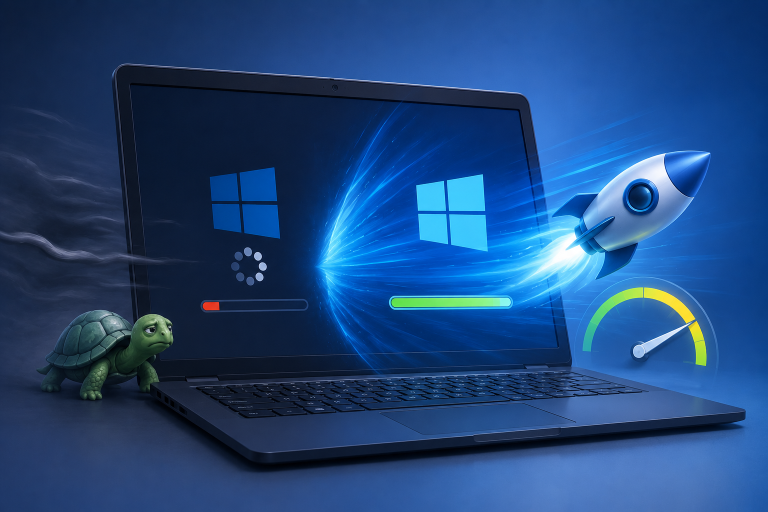
A laptop that freezes randomly can be one of the most frustrating problems to diagnose, as there is rarely an obvious pattern. The screen may stop responding while you are browsing, the mouse cursor may become stuck, an application may suddenly stop working, or the entire computer may become completely unresponsive. Sometimes restarting appears to fix everything, only for the same problem to return several days later.
The difficult part is that “freezing” does not describe one specific hardware or software failure. A laptop can become unresponsive because of insufficient memory, a failing storage drive, overheating, a problematic driver, damaged system files, a badly behaved application, power-related problems, or even a peripheral connected through USB. Two laptops can show the same frozen screen while having entirely different underlying causes.
That is why replacing hardware immediately is usually the wrong first move. A better approach is to look for clues before changing anything major. When does the freeze happen? Does sound continue? Does the mouse move? Does the laptop become hot beforehand? Does it recover after a minute, or does it require a forced shutdown? Those details can narrow the possibilities considerably.
First Work Out What “Frozen” Actually Means
The first useful distinction is whether the whole laptop has frozen or only one application has stopped responding. If you can move the mouse, open another application, or switch between windows, the operating system itself may still be functioning. In that situation, the problem could be limited to a particular program rather than the laptop as a whole.
A complete system freeze is different. The mouse may stop moving, keyboard shortcuts may not work, the screen remains stuck on one frame, and applications do not respond. If nothing changes for several minutes, the operating system may be dealing with a serious driver, hardware, or system-level problem. A forced shutdown may be necessary, but you should treat that as a recovery step rather than a diagnosis.
There is another useful clue: whether the laptop eventually recovers by itself. A computer that freezes for 20 or 30 seconds and then suddenly becomes responsive may be struggling with a temporary resource problem, a driver timeout, storage activity, or an application that is waiting for something to finish. A machine that locks completely every time may point toward a different category of problem.
Pay Attention To What Happens Immediately Before The Freeze
The few minutes before a freeze can tell you more than the frozen screen itself. Try to remember what you were doing. Were you opening a large application, watching video, transferring files, connecting a USB device, waking the laptop from sleep, or simply browsing a few websites?
If freezes repeatedly happen during one particular activity, do not ignore that pattern. A graphics-heavy application that consistently causes the problem could point toward graphics drivers, thermal limitations, or GPU-related issues. A freeze that happens whenever you copy large files could make storage or memory more interesting areas to investigate.
If the laptop freezes while performing entirely different tasks, this may indicate a lower-level problem. Random behavior does not necessarily mean there is no pattern; it may simply mean the pattern has not been identified yet.
Check Whether Heat Is Part Of The Problem
Temperature is one of the first things worth investigating, especially if the laptop becomes noticeably hot before it freezes. Portable computers have limited space for cooling, and dust, blocked vents, aging thermal material, or a cooling fan that is not working properly can make sustained workloads more difficult.
You do not need to assume that every hot laptop is overheating. Modern laptops are designed to operate at relatively high temperatures under load and can reduce performance when they become too warm. The more useful clue is whether the freezing problem appears after the machine has been working hard for a while.
Listen to the cooling fan and pay attention to airflow from the vents. If the fan becomes unusually loud shortly before the freeze, or if the laptop’s underside becomes extremely hot, temperature deserves further investigation. A laptop that freezes after 30 minutes of demanding work but operates normally when cold has a very different symptom pattern from one that freezes five minutes after startup.
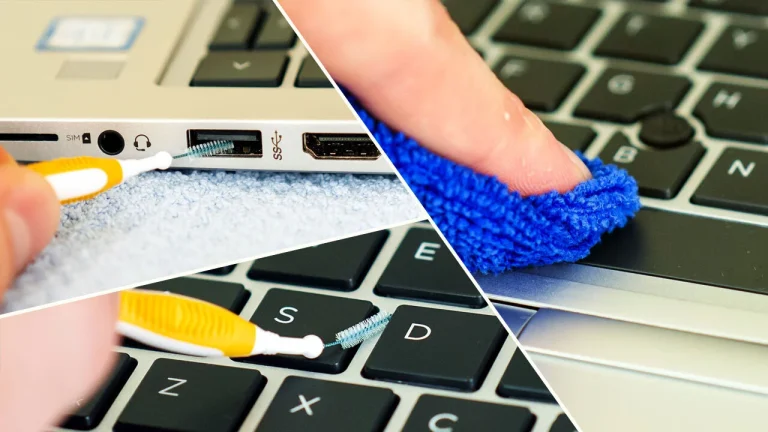
Make sure the laptop is being used on a firm flat surface while testing. Beds, blankets, cushions, and soft furniture can obstruct ventilation. Also ensure that the air vents are not covered by dust or other material. Cleaning should be done carefully rather than by forcing debris deeper into the machine.
Look At Memory Usage Before The Next Freeze
Insufficient available RAM can create symptoms that feel like a system freeze. When physical memory becomes heavily occupied, the operating system may rely more heavily on storage to keep applications running. When storage is much slower than RAM, the computer can become extremely sluggish and may appear to have stopped responding.
Before the next freeze, open your operating system’s task or resource monitor and look at memory usage. On Windows, you can see how much memory you are using and which applications are consuming it in Task Manager. If memory usage is consistently very high when the laptop becomes unresponsive, that is an important clue.
Look beyond the percentage alone. One application consuming an unusually large amount of memory can be more informative than generally high usage. A browser with dozens of tabs, a video editor, virtual machine, large game, or poorly behaved application can consume substantial memory depending on what you are doing.
If closing a particular application consistently makes the laptop responsive again, do not immediately conclude that the RAM itself is defective. The application may have a memory leak or simply require more memory than the laptop comfortably provides.
A RAM Upgrade Is Not Always The Answer
It is tempting to blame freezing on insufficient RAM because upgrading memory is often straightforward on compatible laptops. However, adding RAM will not fix a defective storage drive, faulty driver, overheating, or corrupted operating system.
Seek evidence first. If the laptop regularly approaches its memory limit during normal use, an upgrade could make sense. If memory usage is comfortably below capacity when the freeze occurs, spending money on additional RAM is unlikely to address the underlying problem.
The same principle applies to nearly every hardware upgrade. A symptom should lead to a diagnosis, and the diagnosis should lead to the replacement decision—not the other way around.
Check The Storage Drive
A storage problem can produce surprisingly strange symptoms. If an SSD or hard drive is beginning to fail, the laptop may experience long pauses, applications may stop responding, files may take unusually long to open, and the entire operating system may occasionally appear frozen.
Older mechanical hard drives can become particularly noticeable when they develop problems because the system may repeatedly wait for the drive to respond. SSDs can also fail, although their symptoms can look different and may not always provide an obvious warning beforehand.
If the laptop has started freezing recently and you also notice unusually slow file access, programs taking longer to launch, missing files, or unexplained errors, storage deserves attention. Check the drive’s health using a reputable diagnostic utility or the tools provided by the drive manufacturer where available.
Most importantly, back up important files before experimenting with a drive that may be failing. Diagnosis should not come before protecting valuable data. If the storage device is becoming unreliable, repeated restarts and intensive testing can be less important than making sure your documents, photos, and other irreplaceable files exist somewhere safe.
Investigate Drivers And Recent Updates
Drivers sit between the operating system and hardware such as graphics adapters, Wi-Fi devices, audio components, chipsets, and storage controllers. A faulty, outdated, incompatible, or recently changed driver can cause instability that is difficult to reproduce consistently.
Think about whether the freezing began after a Windows update, driver installation, application update, or hardware change. A problem that started immediately after a specific change provides a valuable lead. It does not prove that the change caused the freeze, but the timing is worth investigating.
Graphics drivers deserve particular attention when freezes happen during games, video editing, external-monitor use, or other graphics-heavy tasks. Wi-Fi and network drivers may be more relevant if the laptop becomes unresponsive while connecting to networks or waking from sleep.
Avoid downloading drivers from random “driver update” websites. If you need to update or reinstall a driver, use the laptop manufacturer’s support resources or the hardware manufacturer’s legitimate software and documentation.
Check Windows Reliability History
One of the most useful but frequently overlooked Windows tools is Reliability Monitor. It can provide a timeline of application failures, Windows errors, hardware-related problems, and other events around the time your laptop became unstable.
The value is not necessarily in finding a message that says “your laptop froze.” Instead, look for repeated failures around the same dates and times. If the same application crashes repeatedly before freezes, that is useful. If hardware errors or driver failures appear around the same events, they may provide another direction for troubleshooting.
Event Viewer can also contain detailed information, although it can be overwhelming because it records many events that are completely normal. Do not assume every warning or error is responsible for a freeze simply because it appears in the log.
The most useful evidence is usually a repeating pattern that lines up with the actual problem. A single unrelated warning is much less meaningful than the same component generating errors every time the system becomes unstable.
Test The Laptop With Fewer Startup Programs
Sometimes a laptop becomes unstable because of software that starts automatically in the background. Security tools, hardware utilities, cloud-sync applications, system-management software, third-party overlays, and other programs can interact in unexpected ways.
You can investigate the issue by reviewing which applications launch automatically when Windows starts. Instead of removing software immediately, disable unnecessary startup applications. Then use the laptop normally and see whether the freezing behavior changes.
If the problem disappears, re-enable items gradually instead of turning everything back on at once. This can help identify whether one particular background application is involved.
Do not disable security software casually or leave important protection permanently turned off simply to perform a test. The purpose of startup troubleshooting is to reduce unnecessary software, not to make the computer less secure.
Consider External Devices
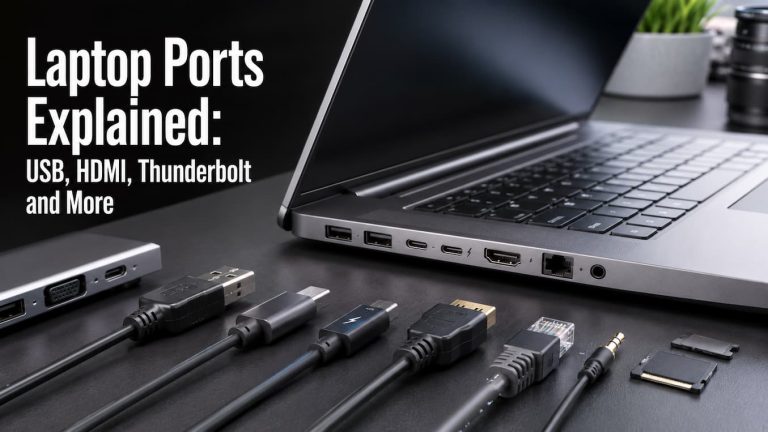
A device connected to the laptop can occasionally cause problems, particularly if its driver or firmware is unstable. USB hubs, external storage, docks, printers, wireless adapters, webcams, and other peripherals all introduce additional hardware and software components.
If the laptop freezes only when a particular device is connected, disconnect it and test the computer without it. If the problem disappears, reconnect devices one at a time rather than plugging everything back in simultaneously.
This is especially useful when troubleshooting laptops connected to docking stations or multiple external monitors. The laptop may appear to freeze randomly, but the underlying issue is often a particular peripheral, driver, cable, or connection.
Again, look for repeatability. A single freeze after connecting a device may be coincidence. The same freeze occurring repeatedly under the same circumstances is much stronger evidence.
Try Safe Mode If Normal Windows Behavior Is Unclear
Safe Mode can help separate certain software and driver problems from problems that occur at a more basic level. In Safe Mode, Windows starts with a more limited set of drivers and services.
If the laptop behaves normally for an extended period in Safe Mode but freezes regularly during ordinary Windows use, third-party software or drivers become more interesting suspects. If the same severe freezing occurs even in a minimal environment, hardware or more profound system problems may deserve more attention.
Safe Mode is not a magic diagnostic tool, though. A laptop that behaves normally there does not automatically identify the exact program responsible. It simply gives you another useful piece of evidence.
The important thing is to change one category of variables at a time. If you simultaneously uninstall applications, update drivers, change power settings, clean the system, and reset Windows, you may eventually fix the problem but have no idea what actually caused it.
Check Power And Sleep-Related Behavior
Some laptops freeze when waking from sleep, switching between battery and charger power, or changing power states. If your freezes happen shortly after closing and reopening the lid, disconnecting the charger, or waking the computer, power management deserves investigation.
Make a note of whether the laptop freezes only on battery, only while plugged in, or under both conditions. That distinction can be useful. A problem that appears only while charging may lead you toward the power adapter, charging hardware, power-management drivers, or related settings rather than general system performance.
Also check whether the laptop has recently received firmware or BIOS updates. Firmware can affect power management and hardware compatibility, but BIOS updates should not be performed casually. Use the laptop manufacturer’s instructions and make sure the machine has reliable power before attempting such an update.
Watch For Signs Of Hardware Failure
Not every freeze is caused by software. If the laptop freezes even after reasonable software troubleshooting, hardware becomes increasingly important.
Memory faults, storage problems, motherboard issues, graphics hardware failures, unstable power delivery, and overheating can all create instability. Hardware failures can also be intermittent, which is one reason they can be so difficult to diagnose.
If your laptop manufacturer provides built-in hardware diagnostics, use them. Memory tests and storage diagnostics can be particularly helpful because they test components that ordinary Windows troubleshooting cannot fully evaluate.
Do not ignore physical changes either. Unexpected shutdowns, unusual clicking sounds from an older hard drive, burning smells, a physically swelling battery, or visible damage are reasons to stop normal use and investigate the hardware more carefully. A swollen battery, in particular, should not be treated as an ordinary performance issue.
Keep A Simple Freeze Log
If the freezing happens randomly, keeping a short record may be more useful than trying to remember every incident. You do not need a complicated spreadsheet. Write down the date, approximate time, what you were doing, whether the laptop was plugged in, whether the fan was loud, which applications were open, and what happened afterward.
After several incidents, look for repetition. Perhaps every freeze happens after the laptop has been running for more than an hour. Maybe all of them occur while using a particular application. Perhaps they happen only when the laptop is connected to an external monitor or only after it wakes from sleep.
An invisible pattern when you think about one incident at a time can become obvious when several events are written next to each other. This is particularly valuable when the problem happens only once every few days.
When A Clean Windows Installation Makes Sense
A clean operating-system installation can solve certain software problems, but it should not be the first response to random freezing. It takes time, requires backups, and can remove applications and settings you rely on.
Consider it only after simpler causes have been investigated and you have reasonable evidence that the problem is software-related. If a clean installation still produces the same freezing behavior with minimal software installed, that result is itself useful because it makes hardware or firmware problems more likely.
Before reinstalling Windows, make sure important files are backed up and that you have access to necessary licenses, installers, account credentials, and hardware drivers. A rushed reinstall can create a second problem while you are trying to solve the first one.
A Practical Order For Troubleshooting
When a laptop freezes randomly, you do not need to test every possible component at once. A sensible sequence is to begin with the least disruptive checks and gradually move toward more involved diagnostics.
| What You Notice | Area To Investigate First |
|---|---|
| Laptop becomes very hot before freezing | Cooling and temperatures |
| One application causes the problem | Application and its updates |
| Freezes during heavy multitasking | RAM and resource usage |
| Long pauses while opening files | Storage drive |
| Problem started after an update | Drivers or recent software changes |
| Freeze occurs after connecting a device | Peripheral and related drivers |
| Problem happens after sleep | Power management and drivers |
| Freezes continue in minimal software environments | Hardware diagnostics |
| Files disappear or storage becomes unreliable | Back up data and investigate storage immediately |
This order is not a guarantee that you will find the answer, but it prevents you from jumping straight to expensive repairs. It also helps preserve useful evidence as you troubleshoot.
When It Is Time To Get Professional Help
If the laptop continues freezing after you have checked obvious software, temperature, storage, and driver issues, professional diagnosis may be worthwhile. This is especially true when the computer contains important work or personal data and you are not comfortable testing hardware yourself.
A technician can perform component-level diagnostics that are difficult to reproduce with ordinary software tools. They can also determine whether a laptop has a failing memory module, storage device, cooling component, motherboard issue, or another hardware fault.
If the machine is still under warranty, check the manufacturer’s support options before opening the laptop or replacing internal components. Opening certain devices can also be impractical because some modern laptops have memory, storage, or batteries that manufacturers do not design for easy user replacement.
The most useful information you can provide is a clear description of the symptoms and what you have already tested. A technician will have a much easier starting point if you can say, for example, that the laptop freezes after 30 minutes of video editing, remains hot, and produces a graphics-related error rather than simply saying that “it freezes sometimes.”
Final Thoughts
Random freezing becomes much easier to deal with when you stop treating it as a single problem. The frozen screen is only the symptom. The useful information is what happened before it, what the laptop was doing at the time, whether heat or heavy resource usage was involved, and whether the problem can be reproduced.
Start with observations rather than replacements. Check temperatures, memory usage, storage health, drivers, recent software changes, external devices, and system reliability information. Keep track of recurring freezes so that small clues can turn into a recognizable pattern. This approach takes a little patience, but it is far more useful than replacing RAM or reinstalling Windows simply because the computer stopped responding.
Most importantly, protect your important files while you troubleshoot. If storage failure is even a possibility, make a backup before performing intensive tests. A frustrating freeze is inconvenient; losing important documents because troubleshooting was started before protecting the data is a much bigger problem.
Once you identify the actual cause, the solution is usually much clearer. A laptop that freezes because of an overloaded application needs a different fix from one suffering from overheating, a bad driver, failing storage, or defective memory. The goal of diagnosis is not simply to make the laptop work again for a few hours. It is to understand why it freezes so you can fix the right problem and know whether the solution is likely to last.
Frequently Asked Questions
Why does my laptop freeze randomly but work normally after restarting?
A restart clears temporary system states and closes applications and processes that may have become stuck. This can temporarily hide problems involving memory usage, drivers, background software, or other components. If the freezing keeps returning, the fact that restarting fixes it is useful information, but it does not identify the underlying cause.
Can low RAM cause a laptop to freeze?
Low available RAM can make a laptop extremely slow and may cause applications to become unresponsive, particularly when many demanding programs are open. However, it is not the only possible explanation for freezing. Check memory usage during normal work and around the time of the problem before deciding that adding RAM is the right solution.
How do I know if overheating is causing the freezes?
Look for a consistent relationship between temperature and the problem. If the laptop becomes unusually hot, the cooling fan runs aggressively, and the system freezes after sustained workloads, overheating becomes a reasonable suspect. Cleaning blocked vents and ensuring proper airflow are sensible first steps, but temperature monitoring can provide stronger evidence.
Could an SSD cause random freezing?
Yes. A storage device experiencing errors or other problems can cause long pauses, application failures, and system instability. If freezing is accompanied by unusually slow file operations, missing files, disk-related warnings, or other storage symptoms, back up important data and investigate the drive’s health.
Should I reinstall Windows if my laptop keeps freezing?
Not immediately. Reinstalling Windows can resolve certain software problems, but it is time-consuming and will not fix faulty hardware. Investigate drivers, applications, temperatures, memory, storage, peripherals, and system logs first. If software troubleshooting points toward a corrupted installation, then a reset or clean installation may become reasonable.
What should I do if the laptop freezes completely?
Give it a short amount of time to see whether it recovers, particularly if the computer was performing a demanding operation. Try normal keyboard or system shortcuts if they still respond. If the system remains completely unresponsive, you may need to perform a forced shutdown, but be aware that this can cause you to lose any unsaved work. After restarting, focus on identifying what happened immediately before the freeze rather than simply continuing as normal.

Samira Patel is a tech writer who believes the best tools are the ones you actually use. She tests every app, shortcut, and workflow on her own laptop before sharing it—no recommendations she hasn’t lived with herself. When she’s not figuring out why a computer is running slow, she’s probably reorganizing her cloud storage (again). She writes to help busy people find simpler, smarter ways to work. No hype, just what works.