Losing track of a file is one of those small computer problems that can waste far more time than it should. You remember creating the document, downloading the image, saving the spreadsheet, or moving the PDF somewhere, but the exact location has completely disappeared from your memory. Searching through folders one by one usually makes the situation worse because it is all too simple to overlook a file or forget which folders you have already checked.
The reassuring news is that you rarely need to know the exact folder before you can find a file. Modern operating systems keep track of file names, types, dates, locations, and other information that can make a search much more precise. The trick is to search based on what you do remember, rather than focusing on what you have forgotten. Even a vague memory such as “I downloaded it sometime last month” or “it was probably a Word document” can provide enough information to narrow things down.
Before you start opening every folder on your computer, take a moment to reconstruct the circumstances around the file. Think about whether you created it yourself, downloaded it, received it by email, saved it from a browser, or copied it from another device. That simple distinction can point you toward the most likely location and save considerable time.
Start With What You Actually Remember
The first step is not opening File Explorer or Finder. It is identifying the pieces of information you still remember about the missing file. You might not remember the folder, but you may remember part of its name, the type of document, approximately when you last used it, or the application in which you opened it.
For example, perhaps you are looking for a spreadsheet you created for a project. You may not remember whether you saved it in Documents, Downloads, or a project folder, but you might remember that the filename contained “budget” and that you worked on it sometime in June. Those two details are already enough to create a much more targeted search than simply looking through your entire drive.
Do not worry if your memory is incomplete. Search systems are designed to work with partial information. Start with the strongest clue you have and add more conditions only when necessary. Searching for a distinctive part of a filename is often much more effective than trying to remember the exact name.
Think About Where The File Came From
Files usually have a history. A document you created in a word processor may have been saved in either Documents or a project folder. A file downloaded from a website is more likely to be in the Downloads folder. An attachment from an email may have been downloaded into a browser’s default download location, while a photograph transferred from a phone may be somewhere inside a Pictures folder.
This does not mean the file must still be there. You may have moved it later, and applications can also use different default locations. However, thinking about the file’s origin gives you a sensible starting point instead of searching randomly.
If you remember opening the file recently, consider which application you used. Many programs keep a list of recently opened files. That list can sometimes reveal the file’s name or location even when you have completely forgotten the folder yourself.
Use Your Computer’s Search Instead Of Browsing Manually
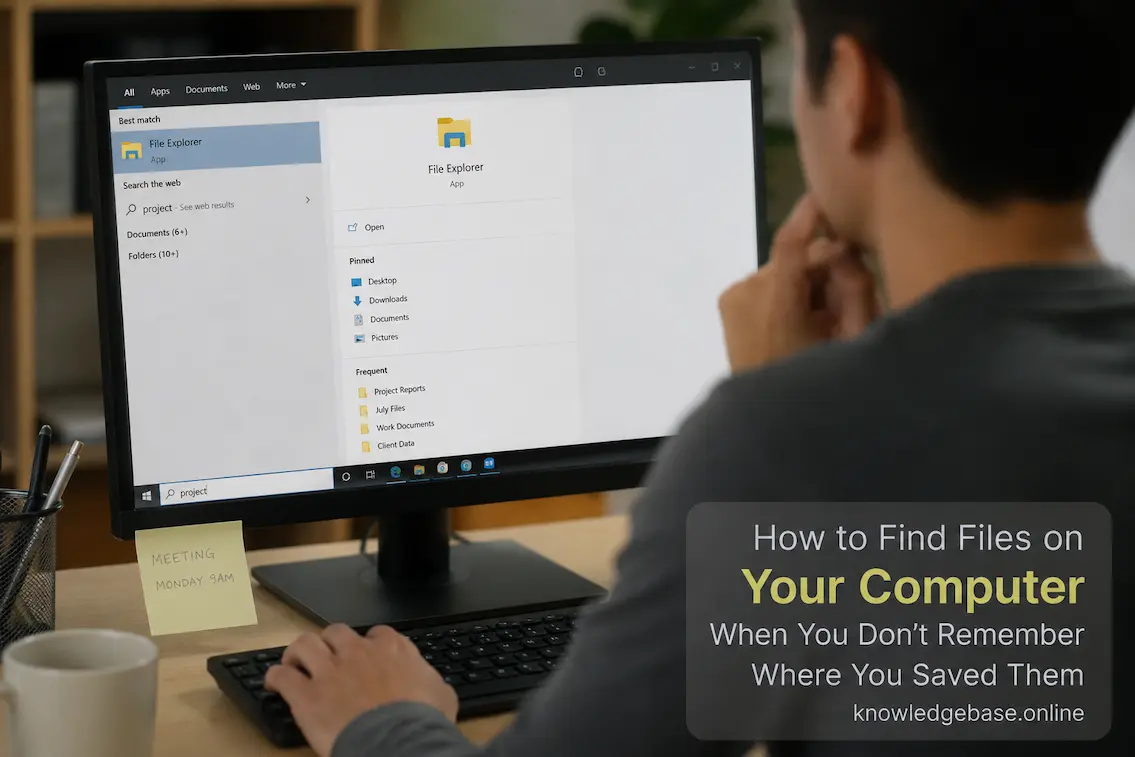
On Windows, File Explorer provides a built-in search function that can search files and folders. On macOS, Finder and Spotlight provide similar capabilities. These tools are usually the best place to begin because they can search across locations without requiring you to remember exactly where the file was stored.
If you know part of the filename, enter that portion rather than guessing the complete name. Suppose you remember that a document was called something like “client proposal final,” but you are unsure whether you used underscores, spaces, or additional words. Searching for “proposal” may reveal several possible matches.
Once you see the results, look at the file type, date, and location. You may quickly recognize the correct file even if several results have similar names.
The key is to avoid searching too specific too early. If you search for an exact filename that you only partly remember, you may accidentally exclude the file you need. Begin broadly and narrow the results based on what appears.
Search By File Type When The Name Is Forgotten
Sometimes the filename is the one thing you cannot remember. In that situation, the file’s type can be extremely useful.
If you are looking for a spreadsheet, for example, you can narrow your search to spreadsheet file types. For a document, you might search for common word-processing formats. Images, PDFs, presentations, videos, and compressed files can similarly be separated from other files.
This works particularly well when you know what the file contains but not what you called it. If you remember creating a presentation about a particular topic but cannot remember the filename, searching through presentation files modified around the relevant date may quickly reveal it.
File types can also help eliminate distractions. A general search for a word such as “report” might return documents, PDFs, email exports, images, and unrelated folders. Limiting the results to the type you actually need makes the list much easier to review.
Common File Types Worth Recognizing
| File Type | Common Extensions | Typical Use |
|---|---|---|
| Word documents | .docx, .doc | Letters, reports, notes |
| Spreadsheets | .xlsx, .xls, .csv | Data, budgets, lists |
| Presentations | .pptx, .ppt | Slides and presentations |
| PDFs | Documents and forms | |
| Images | .jpg, .jpeg, .png, .webp | Photos and graphics |
| Text files | .txt | Plain notes and text |
| Compressed files | .zip, .7z | Bundled or archived files |
You do not need to memorize every file extension. Knowing a few common ones is enough to make many searches more precise.
Narrow The Search By Date
If you have no useful filename but remember roughly when you worked with the file, date can become your strongest clue. Think about the last time you created, downloaded, edited, or received it. Even an estimate such as “sometime during the first week of July” can reduce thousands of files to a much smaller group.
Date-based searching is especially useful for downloaded files. If you remember downloading something recently but cannot remember its name, sorting your Downloads folder by date can be faster than conducting a complicated search.
The same approach works when looking for an older document. You can search for files modified within a particular period and then review the results. Be careful with the difference between created, modified, and accessed dates, because these can represent different events depending on the operating system and how the file was handled.
For example, copying a file to another location may change some metadata without meaning that you actually edited its contents. Treat dates as clues rather than absolute proof.
Check Downloads, Documents, Desktop, And Cloud Folders
Even when you are using search, a quick check of the most common storage locations can sometimes solve the problem immediately. Downloads, Documents, Desktop, Pictures, and similar folders are where many people naturally save or receive files.
Downloads deserves particular attention because browsers often place downloaded files there automatically. People frequently assume they saved a file somewhere else because they remember what they were doing rather than where the browser actually stored the download.
If you use cloud storage, check those folders as well. Services that synchronize files between your computer and the cloud can create locations that look like ordinary folders but behave differently. A file may also exist only online, depending on your synchronization settings.
Do not assume that everything you see in your cloud storage is stored locally. Some systems use online-only files to save disk space, which means opening the file may require an internet connection or cause it to be downloaded again.
Look At Recently Opened Files
If you remember using the missing file recently, check the “recent files” section of the application you used. Word processors, spreadsheet applications, image editors, PDF readers, and many other programs maintain lists of recently opened documents.
This can be much faster than searching the entire computer. If the application shows the file’s full path, you may even discover exactly where you stored it. Even if it only shows the filename, you can still use that name in your computer’s file search, which is helpful.
The recent-files list is especially valuable when you remember the application but not the file location. For instance, if you know you opened the spreadsheet in Excel yesterday, checking Excel’s recent documents may be the quickest way to find it.
Keep in mind that these lists are not permanent records. Older files may eventually disappear from the recent list, and some applications may clear the list after updates or changes to settings.
Check Your Browser’s Download History
If the missing file came from the internet, your browser’s download history can provide an important clue. Even if you have moved, renamed, or deleted the actual file, the browser may still show the original download information.
Look for the relevant download and check whether the browser provides an option to reveal the file in its folder. This can immediately tell you where the download originally went.
If the file is no longer there, do not automatically download it again. First determine whether you moved or renamed the original. Downloading another copy may create duplicate files and make future organization more confusing.
For important documents, it is often worth deciding where the file should permanently live after you locate it. A dedicated folder structure can prevent the same search problem from happening again.
Search Using Words Inside The File
Sometimes you remember the contents of a document but not its filename. Depending on your operating system and the file format, search tools may be able to locate files based on words or phrases contained inside them.
Suppose you remember that a report contained a particular company name or unusual phrase, but you called the file something generic such as “final report.” Searching for the distinctive term may reveal the document even when the filename provides no useful clue.
This method can be slower than searching filenames, particularly on large drives, but it can be extremely useful when your memory is based on content rather than file names.
If you frequently create documents with vague filenames, this scenario is also a good reason to adopt more descriptive naming habits. Search works much better when filenames contain meaningful information.
Don’t Forget External Drives And Other Devices
The file may not actually be on the computer you are searching. If you regularly use USB drives, external SSDs, memory cards, network storage, or another computer, consider whether you might have stored the missing file there.
This is particularly common with older files. You may remember the document because you used it recently, but that does not necessarily mean it was stored locally. A connected external drive or network folder can make this distinction easy to forget.
Check the devices you normally use for storing large files. If you have disconnected an external drive, reconnect it and search there rather than assuming the file has disappeared.
The same applies to phones and tablets. A photograph, document, or downloaded file may have originated on another device and never been copied to your computer’s main storage.
Check Your Recycle Bin Or Trash
If you think you saved the file but can’t find it, check the Recycle Bin on Windows or Trash on macOS. Accidental deletion is surprisingly common, particularly when cleaning folders or moving large groups of files.
If you find the file, check the filename, original location, and deletion date if available. If the file is there, restoring it should return it to its previous location or let you choose where it belongs, depending on the operating system.
If the file is not there, check for backups before assuming it is permanently lost. It may have been deleted in a way that bypassed the normal recycle or trash process, or it may never have been stored locally in the first place.
What If Search Finds Nothing?
A failed search does not necessarily mean that the file has vanished. The file may have been renamed, moved to an unindexed location, stored on an external device, or deleted. You may also be searching with information that does not match the actual file.
Consider changing your approach rather than repeating the same search. If the filename produced nothing, search by file type. If you get too many results, try narrowing the date range. If you remember a distinctive word from the contents, search for that instead.
You can also search broader locations individually. A full-drive search may be slow or incomplete depending on your system’s indexing settings, while checking likely folders separately can sometimes reveal a file that was overlooked.
If the file was particularly important and you believe it was deleted, stop creating unnecessary files on the same drive before considering data-recovery options. Continued disk activity can potentially overwrite data that recovery software might otherwise be able to find.
Prevent The Problem From Happening Again
Finding a missing file is useful, but changing how you organize your files is what prevents the same problem from repeatedly consuming your time. You do not need a complicated folder system. In fact, an overly detailed structure can become difficult to maintain.
Create a small number of broad categories that match the way you actually work. For example, you might have separate areas for Work, Personal, Projects, Documents, and Media. Within those, use subfolders only when there is a genuine need to separate information.
File names matter just as much. A name such as “document-final-new2.docx” tells you very little several months later. Something like “2026-07-Client-Project-Proposal.docx” gives you useful information even if you cannot remember which folder contains it.
The best naming system is one you will actually use. Consistency matters more than complexity.
Use Dates And Descriptive Names
A simple naming convention can make future searches dramatically easier. You might include the project, subject, date, and document type in the filename. You do not need to include every detail; just enough information to distinguish one file from another.
For example, instead of saving multiple files as “invoice,” “invoice-final,” and “invoice-final2,” you could use names that identify the customer and month. This makes both manual browsing and computer searches more effective.
Avoid excessive versions in filenames when your software already provides version history or when a better folder structure can separate active and archived documents. The goal is to make the correct file obvious rather than creating a long trail of confusing duplicates.
Create A Simple Backup Routine
A backup will not help you locate a file that is merely misplaced, but it becomes extremely valuable when a file has actually been deleted, corrupted, or lost because of hardware failure. Important documents should not exist in only one location.
Your backup strategy does not need to be complicated. The important thing is that valuable files are copied somewhere separate from the original and that the backup is updated regularly.
Cloud synchronization and backup are also not the same thing. A synchronized folder can reflect deletions or changes across devices, while a proper backup may provide older versions or recovery options. Understanding how your chosen storage service works can prevent unpleasant surprises.
Final Thoughts
If you don’t remember where you saved a file, the file is not necessarily lost. Often, the information you still remember—its approximate name, type, date, contents, source, or the application you used—is enough to locate it. The important thing is to use those clues systematically instead of opening folders at random.
Start with the simplest search, then gradually narrow the results using file type, dates, likely locations, or words contained in the document. Check recent files and browser downloads when appropriate, and remember that cloud folders, external drives, and other devices can be part of the picture.
Once you find the file, take a minute to make its future location easier to understand. A consistent folder structure, descriptive filename, and reliable backup routine can save you from repeating the same search months later. Good file organization is not about creating a perfect system; it is about making your future self spend less time wondering, “Where did I save that?”
Frequently Asked Questions
What is the fastest way to find a file I cannot locate?
Start by searching for a distinctive part of the filename using your operating system’s built-in search. If you do not remember the name, search by file type and approximate date. Then check common locations such as Downloads, Documents, Desktop, cloud folders, and external drives. Recently opened files in the application you used can also be a quick shortcut.
Can I find a file if I only remember what was written inside it?
Sometimes, yes. Depending on your operating system, file format, and search indexing, your computer may be able to search the contents of documents. Use a distinctive word, phrase, name, or subject that you remember appearing in the file. This is particularly helpful when the filename was something generic.
Why can’t I find a file even though I know I saved it?
The file may have been moved, renamed, deleted, saved to another device, stored in cloud storage, or placed in a different folder than you expected. It is also possible that the application used a different default location. Check recent files, downloads, cloud folders, external drives, and the Recycle Bin or Trash before assuming the file is gone.
Is it better to search by filename or file type?
If you remember any part of the filename, start there because it will usually produce more focused results. If you cannot remember the filename at all, searching by file type and date can be more effective. You can combine the two approaches once you have a smaller set of results.
Should I create lots of folders to keep files organized?
Usually not. A complicated folder structure can make files harder to find if you cannot remember which category you placed them in. A small number of logical folders combined with descriptive, consistent filenames is often easier to maintain and search.

Samira Patel is a tech writer who believes the best tools are the ones you actually use. She tests every app, shortcut, and workflow on her own laptop before sharing it—no recommendations she hasn’t lived with herself. When she’s not figuring out why a computer is running slow, she’s probably reorganizing her cloud storage (again). She writes to help busy people find simpler, smarter ways to work. No hype, just what works.