
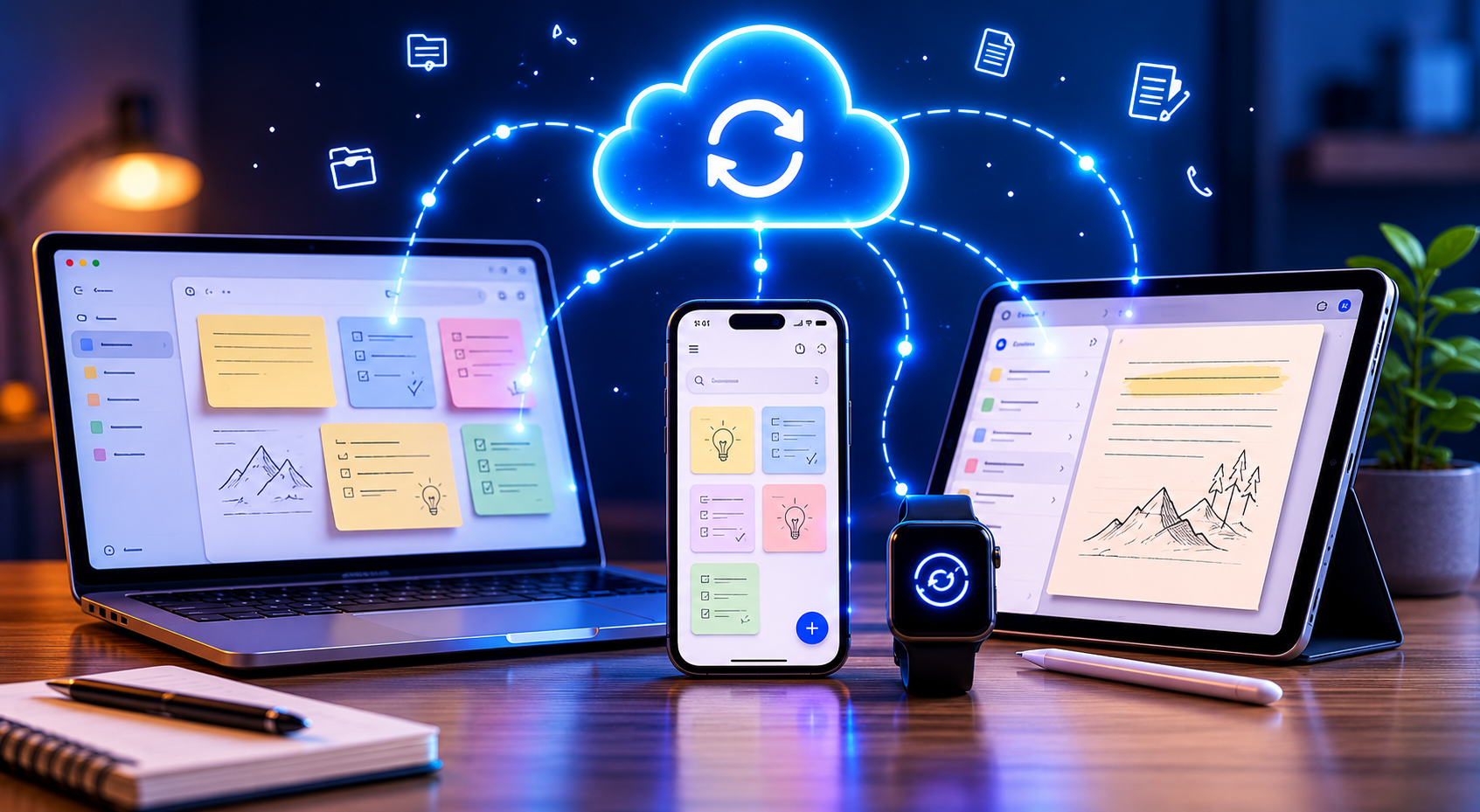
By quickly jotting down ideas on your smartphone on your way to work in the morning and developing them later on your laptop, you can significantly improve your work efficiency. The modern digital office depends on the ability to access important documents anytime, anywhere. Keeping all your ideas on a single device can lead to missing valuable inspiration or even losing important data.
When you switch to a fully synchronised digital world, you no longer have to worry about sending text files to yourself or using paper notebooks. A reliable way to capture information ensures that your data is always up-to-date, secure, and immediately available. The installation process is quick and simple, and you will benefit greatly from it.
How Device Synchronization Works
Cloud computing is designed to store your data centrally for device synchronisation. When you add or modify notes on your phone, the application sends the changes to an external computer. Your other devices continuously communicate with this computer, check for changes, and download new data to their respective hard drives. Thanks to this design, your digital life on the main computer is always up to date. Understanding this principle helps you better understand the synchronisation process and the importance of a stable network connection. If a device is not connected to the internet, it keeps local changes until the network connection is restored and background updates begin.
Which Cross-platform Note-taking app is the Best?
The most important part of a synchronisation plan is choosing the right app. When choosing an app, check if it is compatible with all the systems you use, such as iOS, Android, Windows, and macOS. Tools like Microsoft OneNote, Evernote, and Google Keep all offer built-in cross-platform support.
By looking at the features of the tools and their compatibility with different platforms, you can find one that meets your daily needs. Some users need powerful capabilities for text editing and attaching images, while others prioritize speed and ease of use. Think about what you do daily and then choose an app that fits your work or private life.
Setting up Synchronization Step-by-step
The first step in starting the synchronisation process is creating a dedicated user account with your chosen note-taking service. Your phone, tablet, and computer must all download the official app from their respective app stores. Consistency is still very important at this stage, so use the same email address and password for all apps.
After logging in on each device, go to the app’s settings and ensure that background synchronisation is enabled. Next, create a test document on your phone and check the synchronisation on your computer to ensure that the data transfer is running smoothly. With this simple check, you can also ensure that your network connection is working properly and that your account permissions are set correctly.
Advanced Methods to Improve Workflow Efficiency
Setting up a uniform organisational framework suitable for all screen sizes is essential for optimising digital office work. By using standard naming systems or folder structures, you can quickly find what you need, whether you are viewing files on a large screen or a small mobile phone. Following naming conventions also makes it easier to find older files.
For frequent travellers or users with an unstable network connection, using offline access settings can further improve efficiency. Most paid apps offer the option to select local storage folders, allowing you to view important files even without a Wi-Fi or mobile network connection. Regularly check your offline storage settings to ensure you always have access to your most important documents.
How to Resolve Common Synchronization Issues
Synchronisation problems are usually caused by clear technical issues. The most common cause is inconsistent document versions, which often occurs when you edit the same file simultaneously on two offline devices. Most systems now copy files to save two sets of changes, requiring you to manually merge the text after reconnecting.
Authentication errors often interrupt background data exchange. If you recently changed your account password on your desktop computer, your mobile app might silently refuse to synchronise until you enter the new password. Before contacting technical support, check your account status for software updates and ensure your device has sufficient storage space.
Benefits of a Uniform Note-taking System
Switching between different work environments can be tiring, but consistency in your digital world significantly simplifies the process. You no longer need to remember which device your shopping list or meeting schedule is on. Thanks to the seamless transition between mobile and desktop mode, you can jot down ideas at any time.
Furthermore, a centralised cloud system effectively protects your data and accelerates disaster recovery. Hardware failures, lost devices, and accidental damage no longer lead to massive data loss. All your ideas are securely stored on a backup computer and can be loaded directly onto your new device as soon as you log in.
How to Create Effective Digital Notes
Setting up a synchronised note-taking method is an investment in your future peace of mind and increased productivity. Understanding how cloud technology works and choosing the right cross-platform tools ensures that your most important ideas are safe. Follow these steps, and location and technology issues will no longer hinder your work.
Take a moment today to review your usual note-taking methods and see where you have scattered your information. You need to download a cross-platform app, register an account, and then run a quick synchronisation test. These steps will immediately streamline your daily tasks and protect your digital memories.