
Last Updated: June 2026 | Reading Time: 9 minutes
Why Traditional Spreadsheet Analysis Falls Short
Spreadsheets democratized data manipulation decades ago, yet they remain fundamentally manual. Every formula requires human construction. Every chart demands explicit selection. Every trend demands intentional calculation. This works for small datasets with clear questions but collapses under modern analytical demands.
A sales manager examining quarterly performance across fifty products, twelve regions, and twenty-four months faces thousands of data points. Identifying which combinations underperform, which show accelerating decline, and which correlate with marketing spend requires constructing dozens of pivot tables, SUMIF formulas, and conditional formatting rules. Hours of manual work yield answers to questions the manager thought to ask. Patterns the manager never considered remain invisible.
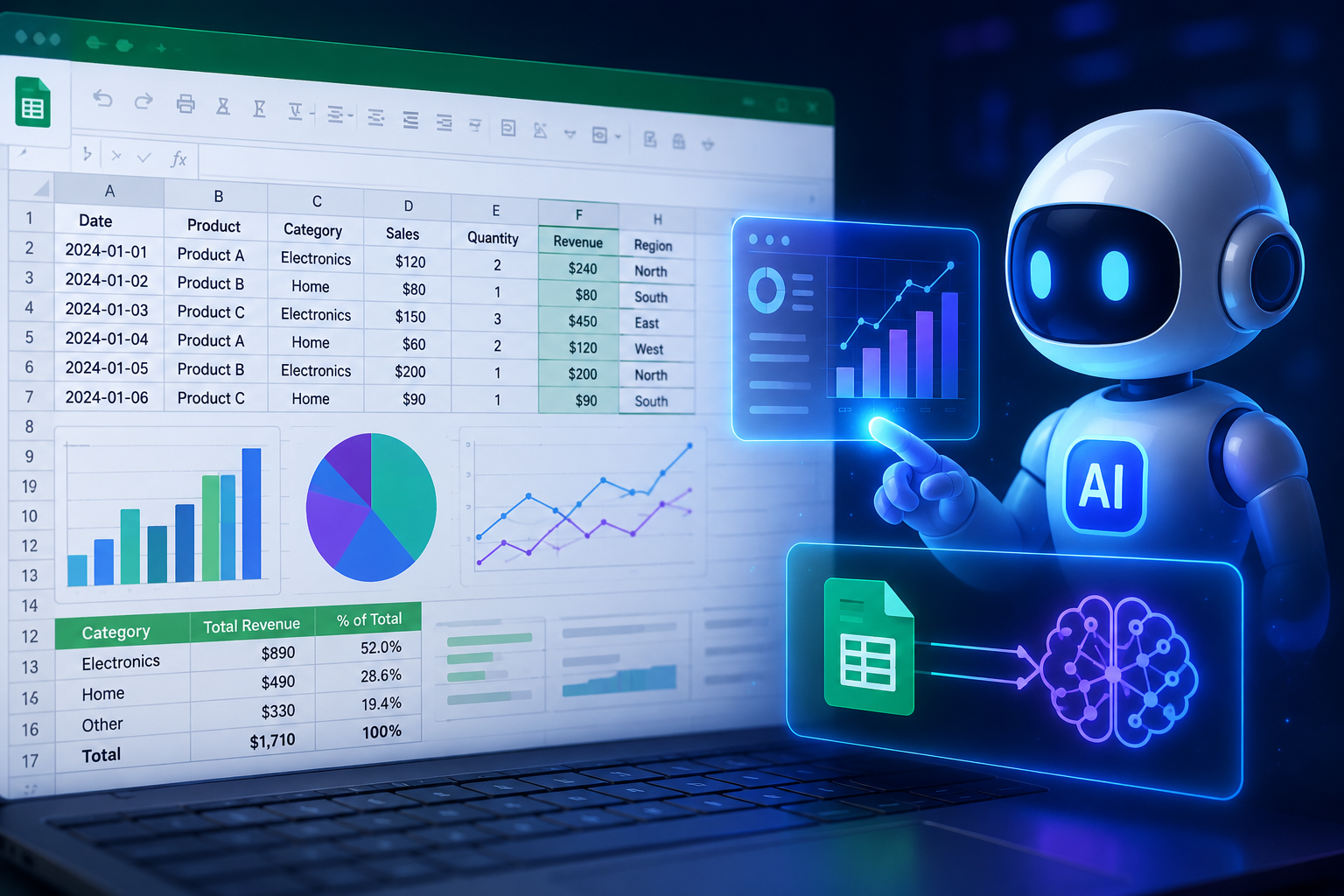
AI integration transforms spreadsheets from passive containers into active analytical engines. The same manager uploads data and asks, “Which product-region combinations show declining trends?” AI identifies patterns, generates appropriate calculations, and presents visualizations within minutes. The manager explores follow-up questions conversationally rather than rebuilding formulas repeatedly.
Built-In AI Features: Excel and Google Sheets
Mainstream spreadsheet applications now embed AI capabilities directly, requiring no additional tools for basic intelligent analysis.
Microsoft Excel Ideas
Excel’s Ideas feature, available in Microsoft 365, analyzes selected data ranges automatically. Click any data region, navigate to Home > Ideas, and Excel generates suggested charts, pivot tables, trend analysis, and anomaly highlights. The system identifies correlations, ranks important trends, and flags unusual values without formula construction.
Ideas excels at quick exploratory analysis. A financial analyst selecting monthly revenue data receives automatic seasonality detection, year-over-year growth calculations, and outlier month identification. Natural language querying allows typing questions like “Why did Q3 revenue spike?” and receiving generated pivot tables answering the question.
Limitations exist. Ideas work best with clean, structured data in tabular format. Heavily formatted spreadsheets with merged cells, nested headers, and inconsistent layouts confuse the system. Complex analytical questions beyond trend detection and basic correlation require more sophisticated tools.
Google Sheets Explore
Google Sheets includes Explore in the bottom-right corner of every spreadsheet. Clicking it generates automatic charts, pivot table suggestions, and answer cards responding to natural language questions. The feature analyzes data structure and content to propose relevant visualizations without user direction.
Explore integrates tightly with Google Workspace. Suggested charts embed directly into Google Docs and Slides presentations. Answers update dynamically as underlying data changes. Collaboration features allow team members to query shared datasets conversationally without formula expertise.
Explore’s AI is narrower than Excel Ideas in some respects but broader in integration. It lacks deep statistical analysis capabilities but excels at rapid visualization and collaborative querying. For teams already embedded in Google Workspace, the seamless workflow integration outweighs analytical depth limitations.
| Feature | Excel Ideas | Google Sheets Explore |
|---|---|---|
| Automatic chart generation | Yes | Yes |
| Natural language querying | Yes | Yes |
| Anomaly detection | Yes | Limited |
| Predictive forecasting | Yes (Forecast Sheet) | No |
| Integration depth | Microsoft ecosystem | Google Workspace |
Advanced AI Tools for Spreadsheet Power Users
Built-in features address common needs. Specialized AI tools extend capabilities for complex analysis, large datasets, and sophisticated modeling.
ChatGPT Code Interpreter
OpenAI’s Code Interpreter, available to ChatGPT Plus subscribers, executes Python code against uploaded spreadsheet files. Users describe analytical needs conversationally; the system writes and runs appropriate code, returning results with explanations. This bridges the gap between spreadsheet familiarity and programming power.
A marketing analyst uploads customer purchase history as a CSV. They ask, “Segment customers by purchase frequency and identify which segments have highest lifetime value.” Code Interpreter loads the file, calculates RFM metrics (recency, frequency, monetary value), applies clustering algorithms, generates segment visualizations, and presents actionable summaries. The analyst never writes code directly.
Capabilities extend to statistical testing, machine learning predictions, complex data transformations, and custom visualizations impossible in native spreadsheet functions. The conversational interface allows iterative refinement: “Now show me which products drive value in segment 3” or “Predict next quarter’s revenue using this historical data.”
Limitations include file size constraints, internet dependency, and the need for a ChatGPT Plus subscription. Results require verification; AI occasionally misinterprets data structures or applies inappropriate statistical methods. Users must understand enough to recognize plausible versus nonsensical outputs.
Julius AI
Julius AI specializes in conversational data analysis with strong spreadsheet integration. Upload Excel or CSV files, then query through natural language. The platform handles data cleaning, statistical analysis, visualization, and report generation automatically.
Julius distinguishes itself through explanation quality. Rather than presenting raw numbers, it generates narrative interpretations: “Your sales show strong weekend seasonality with Saturday revenue averaging 34% above weekday baselines. This pattern intensified during summer months, suggesting weather-dependent purchasing behavior.” This narrative approach suits stakeholders needing context, not just calculations.
Export options include regenerated spreadsheets with calculated columns, presentation-ready charts, and detailed PDF reports. The free tier supports limited monthly uploads; paid plans accommodate heavier usage.
Ajelix and SheetAI
These tools embed directly into spreadsheet environments as add-ins or extensions. Ajelix generates Excel and Google Sheets formulas from natural language descriptions. Type “calculate average sales for product A where region equals North” and receive the correct AVERAGEIFS formula. It also explains existing formulas, translates between Excel and Google Sheets syntax, and generates VBA or Apps Script automation.
SheetAI brings GPT-powered intelligence into Google Sheets specifically. Functions like =SHEETAI(“summarize this data range”) or =SHEETAI(“extract sentiment from A2:A100”) execute AI operations within cells. This integrates seamlessly with existing spreadsheet workflows rather than requiring separate tool adoption.
Microsoft Copilot in Excel
Microsoft’s Copilot integration, expanding throughout 2025-2026, brings generative AI directly into Excel’s interface. Copilot suggests formulas, generates pivot tables from descriptions, creates forecast models, and answers data questions in conversational side panels. Deeper integration than Ideas, with context awareness across the workbook and connected data sources.
Copilot connects to external data through Power Query, enabling AI analysis across multiple spreadsheets, databases, and cloud services simultaneously. Enterprise features include collaborative AI sessions where multiple users refine analyses together.
| Tool | Best For | Integration | Starting Price |
|---|---|---|---|
| Excel Ideas | Quick exploration, trend detection | Native Excel | Microsoft 365 included |
| Google Sheets Explore | Collaborative visualization | Native Sheets | Free |
| ChatGPT Code Interpreter | Advanced analysis, predictions | Upload files, web interface | $20/month ChatGPT Plus |
| Julius AI | Narrative insights, reporting | Upload files, web interface | Free tier, paid from $20/month |
| Ajelix | Formula generation, automation | Excel/Sheets add-in | Free tier available |
| Microsoft Copilot | Deep Excel integration, enterprise | Native Excel | Microsoft 365 Copilot add-on |
Practical Workflow: From Raw Data to AI Insights
Effective AI spreadsheet analysis follows structured steps, ensuring reliable results.
Step 1: Prepare Clean Data
AI tools require structured, consistent input. Remove merged cells, standardize headers in a single row, ensure consistent data types within columns, and eliminate blank rows interspersed with data. Date formats should be uniform. Text entries should use consistent terminology—”United States,” “USA,” and “US” in the same column confuse the analysis.
Document what each column represents. AI tools without context make assumptions that may mislead. A column labeled “value” could represent revenue, inventory count, or satisfaction score. Brief descriptions guide accurate interpretation.
Step 2: Select Appropriate Tool
Match tool capability to analytical need. Quick trend detection in existing Excel workbooks? Use Ideas. Complex predictive modeling on large datasets? Use ChatGPT Code Interpreter or Julius AI. Formula assistance while working in spreadsheets? Use Ajelix or SheetAI. Collaborative team analysis in Google Workspace? Use Explore.
Step 3: Formulate Clear Questions
AI responds to question quality. Vague requests yield vague answers. “Analyze this data” produces generic summaries. Specific questions generate actionable insights: “Which product categories show declining sales over the last six months?” or “What is the correlation between marketing spend and new customer acquisition by region?”
Iterative questioning refines results. Initial answers suggest follow-up directions. Treat AI analysis as conversational exploration rather than a single-query solution.
Step 4: Verify and Validate
AI makes mistakes. Formulas may reference wrong ranges. Statistical tests may violate assumptions. Predictions may extrapolate beyond data validity. Spot-check critical calculations manually. Compare AI-generated charts against expectations. Question surprising findings rather than accepting them uncritically.
Request AI to show its work when possible. Code Interpreter displays executed Python, enabling verification. Formula generators show resulting syntax for manual inspection. Transparent tools build more trust than black-box outputs.
Step 5: Integrate and Act
Export AI-generated insights into your workflow. Embed charts into presentations. Add calculated columns to source spreadsheets. Set up automated refresh for recurring analyses. Share findings with stakeholders using AI-generated narrative summaries that communicate technical results accessibly.
Common Use Cases and Approaches
Financial Forecasting
Upload historical revenue, expense, and operational data. Request time-series forecasting with confidence intervals. AI tools apply exponential smoothing, ARIMA models, or machine learning approaches appropriate to data characteristics. Compare multiple forecasting horizons—next month, next quarter, next year—to assess reliability degradation over time.
Customer Segmentation
Provide customer transaction history, demographics, and interaction records. Request clustering analysis identifying natural customer groups. AI determines optimal segment count, calculates segment characteristics, and suggests descriptive names. Export segment assignments back to your CRM for targeted marketing execution.
Anomaly Detection
Supply time-series data with expected patterns—daily sales, website traffic, server metrics. Request identification of unusual values and potential explanations. AI flags statistical outliers and contextual anomalies, distinguishing genuine problems from normal variation.
Text Analysis in Spreadsheets
Columns containing customer feedback, support tickets, or survey responses benefit from AI text analysis. Sentiment scoring categorizes responses as positive, negative, or neutral. Topic extraction identifies recurring themes without manual reading. Summarization condenses lengthy entries into actionable briefs. Tools like SheetAI embed these capabilities directly into spreadsheet cells.
Limitations and Responsible Use
AI spreadsheet augmentation is powerful but bounded. Understanding constraints prevents costly misapplication.
Data size limits: Cloud AI tools impose upload constraints. Very large datasets require sampling, aggregation, or specialized big data platforms beyond spreadsheet scope.
Privacy concerns: Uploading sensitive business data to third-party AI services involves security and compliance considerations. Evaluate vendor data handling policies. Some enterprises restrict external AI tool usage entirely, preferring on-premises or private cloud alternatives.
Formula complexity: AI-generated formulas for intricate business logic may be inefficient or brittle. Review generated code for maintainability. Document assumptions for future users who must modify or debug.
Over-reliance: Teams delegating all analysis to AI lose analytical skills over time. Maintain manual capabilities for verification and edge cases. Use AI as an amplifier, not a replacement, for human judgment.
Related Articles
- What Is AI-Powered Data Analytics for Beginners
- How AI Tools Summarize Large Datasets Instantly
- Best AI Dashboard Tools for Tracking Metrics
- AI Data Visualization Tools Compared
- How Small Businesses Can Use AI Analytics
Sources and References
- Microsoft Corporation. (2026). Excel Ideas and Copilot: AI-Powered Data Analysis in Spreadsheets. Microsoft Support Documentation.
- Google Workspace. (2025). Google Sheets Explore: Automated Insights and Natural Language Querying. Google Workspace Learning Center.
- OpenAI. (2025). ChatGPT Code Interpreter: Advanced Data Analysis Capabilities and Spreadsheet Integration. OpenAI Platform Documentation.
- Julius AI. (2026). Conversational Data Analysis: Spreadsheet Upload and Narrative Insight Generation. Julius AI Help Center.
- Microsoft Research. (2025). Spreadsheet Intelligence: Challenges and Opportunities in End-User Data Analysis. ACM Transactions on Computer-Human Interaction, 32(4), 1-28.