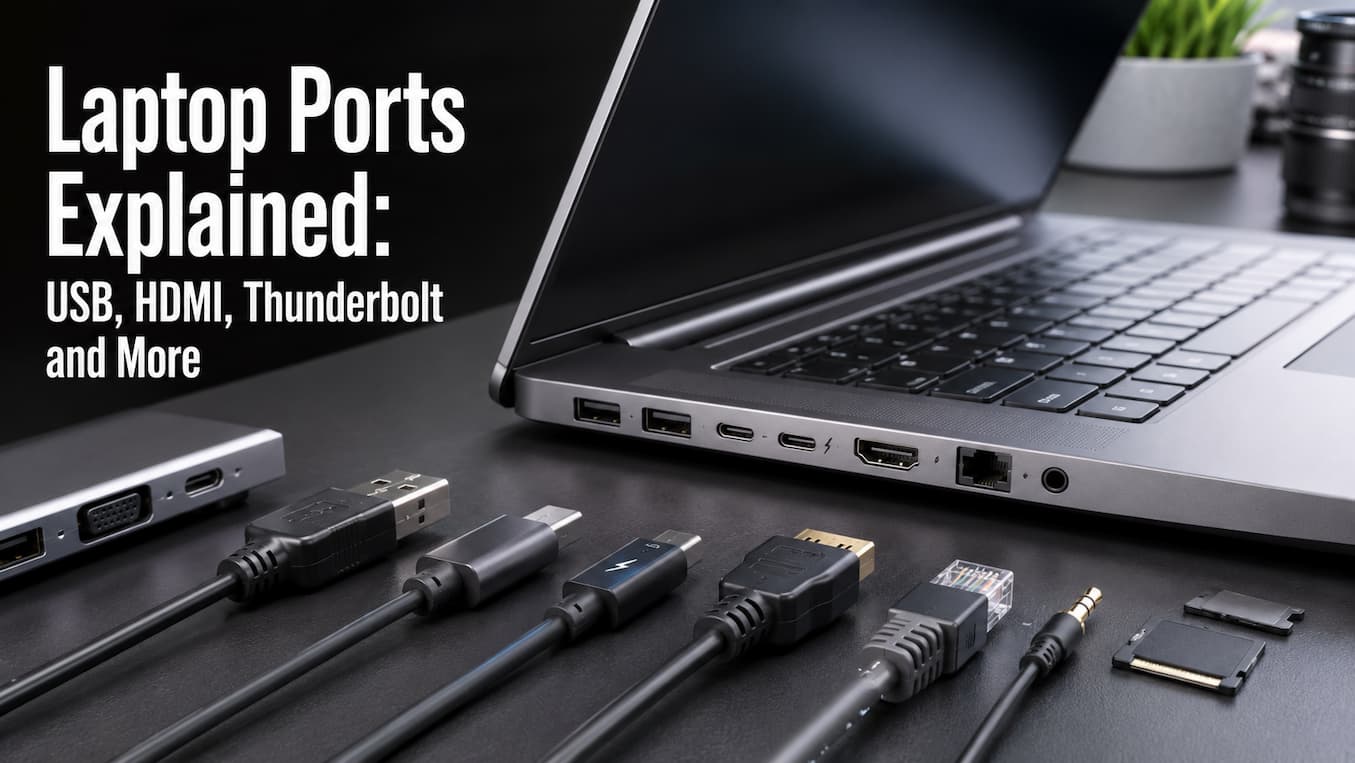
Unfortunately, laptop ports are more than just different shapes. They support multiple standards, speeds, power levels, and display technologies. Two ports may look the same but function very differently. Understanding a few basic technical principles can simplify daily use. You can choose the right cables, easily connect various accessories, and make more informed purchasing decisions. It is crucial to distinguish between a port and the technologies it supports. Once you understand these differences, understanding USB, HDMI, Thunderbolt, and other laptop ports becomes much easier.
Laptop Ports Are More Complex Than They Appear
Laptop ports are used to connect various devices and cables. However, the shape of a port does not always indicate its function. The function of the USB-C port is the simplest. USB-C refers to the physical interface, not a performance level. It is a compact, reversible, and widely used interface. USB-C ports typically support charging, data transfer, external displays, or a combination thereof. However, USB-C ports on laptops often offer relatively fewer features.
Interface symbols and manufacturer specifications are crucial. A lightning bolt, display, or charging symbol on the interface indicates the supported functions, but different manufacturers may use different markings. The same applies to USB-A ports. Two identical-looking rectangular USB-A ports can support different USB versions. Your cable might work with both interfaces, but one may be faster than the other. Therefore, when purchasing a laptop or other device, do not judge a port solely by its appearance. Always check which functions each port supports.
Rectangular USB-A Port
Computers have been using rectangular USB ports—USB-A—for a long time. Laptops, desktops, keyboards, mice, external storage devices, printers, and other accessories still use this interface. Although USB-A ports can power compatible devices, they mainly transfer data and connect external devices. The USB standard of the interface and the device determines the data transfer speed.
The advantage of the USB-A interface is its ease of use. If you have older devices that use this interface, a USB-A port is very convenient. The biggest disadvantage is the physical design. Unlike the USB-C interface, the USB-A interface cannot be plugged in in reverse, which means it may take multiple attempts to connect it successfully. The USB-C interface is smaller but offers more capabilities, which is why modern laptops are increasingly using USB-C. Do not assume that all USB-A interfaces have the same speed; check your laptop’s specifications. Although the color of the USB connector can serve as a reference, the colour scheme is not a global standard. Small interface, multiple options
USB-C: Small Connector, Many Possibilities
The USB-C interface is one of the most important interfaces on a laptop. This small, reversible connector is very convenient, but the USB-C interface does not define all its functions, meaning its functionality is not always entirely clear. The USB-C interface supports data transfer, charging, and image output. Laptops can support USB 4.0 or Thunderbolt, depending on the implementation.
Two USB-C ports on a laptop can have different functions. One can be used for charging and regular data transfer, while the other can be used for high-speed data transfer, external displays, and advanced docking station connections. The choice of cable is also important. A USB-C cable that supports charging may not offer the same data transfer speeds or image quality as a cable with higher specifications. Your device, port, and cable must support this function. When purchasing a laptop, a USB-C port makes connecting new peripherals or using a docking station easier. Check the manufacturer’s specifications to understand which functions each port supports.
Different USB Versions and Speeds
Over the years, USB naming conventions have become more complex. Terms such as USB 3.2 Gen 1, Gen 2, USB 4, and transfer speeds make comparisons difficult. The most important thing is that the physics
| Connection | Typical Use | What to Check |
|---|---|---|
| USB-A | Older and widely used peripherals | USB generation and transfer speed |
| USB-C | Modern peripherals, charging and data | Supported USB standard, power and display capabilities |
| USB4 | High-performance modern connectivity | Exact USB4 implementation and supported features |
| Thunderbolt | High-speed data, displays and docking | Thunderbolt version and device compatibility |
For everyday accessories such as a keyboard or mouse, speed differences may not matter. For external SSDs, professional storage, high-resolution displays, or docking stations, they can matter considerably more.
Thunderbolt: More Than Just USB-C
Thunderbolt integrates multiple connections into one powerful interface. A suitable docking station connects to a laptop via a single cable and provides ports for displays, USB devices, networking, storage, and other peripherals. USB-C interfaces do not guarantee Thunderbolt support. If you need Thunderbolt, check your laptop’s specifications for the Thunderbolt logo or compatibility information. Thunderbolt can be very useful for professionals who work with large amounts of files, fast external storage devices, multiple displays, or complex docking station configurations. If you only use a mouse and USB flash drives, you may not need the extra features.
HDMI: A common option for external displays
HDMI is one of the most common ports on laptops. It is primarily used to transmit digital audio and video signals to monitors, TVs, and projectors. An HDMI port can be used to project your laptop screen onto a larger screen or TV. Depending on the HDMI version and the performance of the laptop/monitor, it supports various resolutions, refresh rates, and advanced display features.
It is important to know that the shape of the HDMI port says nothing about its performance. The design of the laptop’s HDMI port, the monitor, and the cable all influence its functionality. Due to smarter designs and USB-C connectivity, some mini-laptops do not have an HDMI port. If the USB-C port supports display mode, a USB-C adapter or docking station can be used to connect an HDMI monitor.
USB-C and DisplayPort
DisplayPort is also used to connect computers and monitors. On many laptops that support DisplayPort display mode, DisplayPort signals are transmitted via the USB-C port. This situation can be confusing, as cables may have a USB-C port but use a DisplayPort port. It is important to check whether the laptop’s USB-C port supports video output.
Before connecting your laptop to a monitor, check if it supports video output via USB-C. Furthermore, check if the monitor and the cable support the correct resolution and refresh rate. For users who use external displays, it is crucial to check this before purchasing a laptop. Even laptops with multiple USB-C ports may have limited display connectivity options if those ports cannot output video.
Ethernet: When Wi-Fi is insufficient
Laptops can connect to wired networks via Ethernet ports. Ethernet connections are used to access the internet, connect to local area networks (LANs), and establish stable wired connections. Ethernet is useful in offices, studios, classrooms, and at home where network performance is important. Connecting via Ethernet allows you to determine whether the problem lies with the wireless network or the internet connection, which helps troubleshoot Wi-Fi issues.
Many ultra-thin laptops no longer feature an Ethernet port. You can connect using a USB-C Ethernet adapter or docking station. Check the network speed of the Ethernet adapter before purchasing it. A slow adapter or network device renders even a faster internet connection useless.
Headphone and Audio Jacks
Headphones, speakers, and microphones use a 3.5 mm audio jack. The microphone and headphone ports can be located on the same laptop or be separate. Simplify physical audio connections. Pairing or charging is not required to connect compatible headphones.
Some newer laptops use USB-C or wireless audio ports instead of headphone jacks. If you use wired headphones, check compatibility before purchasing a laptop. Using USB-C audio may require a compatible adapter or digital audio device. If you want to use older headphones on a new laptop, check the compatibility of your USB-C audio adapter.
MicroSD and SD card slots
SD card slots are incredibly useful for photographers, videographers, and anyone who regularly transfers files. A standard-sized SD card slot can replace a card reader. Some laptops use microSD card slots, which are smaller and are often found in compact laptops. MicroSD cards can be used with a standard-sized SD card reader via an adapter, but this may affect the performance of the laptop’s built-in card reader.
For large photo or video files, check the specifications and transfer speed of the memory card. An SD card slot does not guarantee compatibility with all high-speed memory cards.
Buying a laptop: Port selection
The devices you connect determine the optimal choice of laptop ports. Students using wireless devices may only need a few USB ports and an HDMI port. For professionals who need to connect multiple monitors and external storage devices, Thunderbolt or high-speed USB4 connections are more practical. Consider your device needs. If you use USB-A accessories, check whether your laptop has enough ports or if you need an adapter. If you regularly connect external monitors, check the display outputs before buying a laptop.
While docking stations can provide fewer connectivity options, they tend to be costly and necessitate extra hardware. If you often work at the same desk, a laptop with the right ports might be more convenient. When you buy a laptop, think about more than just the number of ports. A few compatible, powerful ports are often better than multiple older ports that are incompatible with your devices.
Conclusion
Laptop ports may seem unimportant, but they have a major impact on how well a computer integrates into your daily workflow. USB-A ports are suitable for older accessories, USB-C ports are compact and flexible, Thunderbolt ports offer superior performance, and HDMI ports allow for connecting external displays.
Most importantly: do not judge a port’s performance based solely on its shape. Many additional ports, such as USB-C, have different functions depending on the laptop. Check the speed, charging, video output, and capabilities of a docking station. Understanding ports and their technology simplifies the choice of cables and accessories. More importantly, you can buy a laptop based on the ports you need, rather than focusing solely on the number of ports or assuming that all identical-looking ports work the same way.
FAQs
1. Are USB-C and Thunderbolt ports the same?
Thunderbolt is a powerful communication technology that utilizes a USB-C port. Not all USB-C ports automatically support Thunderbolt.
2. Can any USB-C port charge a laptop?
No. Not all USB-C ports support charging; some are used for data transfer or other purposes. Laptop manufacturers should list the ports that support Power Delivery in their specifications.
3. Can USB-C be used to connect a laptop to a monitor?
Only if the USB-C port supports video output. The monitor, laptop, cable, and adapter must all support the corresponding display technology and performance level.
4. Is HDMI better than USB-C for connecting a monitor?
Both have advantages and disadvantages. HDMI connections are convenient and most TVs and monitors support HDMI, while USB-C can combine video output with other functions and is very useful for docking station connections. The best choice depends on the device and your needs.
5. Does my laptop need Thunderbolt?
Not necessarily. Thunderbolt is ideal for fast external storage, advanced docking station connections, and multi-monitor setups. USB connections may be sufficient for basic peripheral needs.

Samira Patel is a tech writer who believes the best tools are the ones you actually use. She tests every app, shortcut, and workflow on her own laptop before sharing it—no recommendations she hasn’t lived with herself. When she’s not figuring out why a computer is running slow, she’s probably reorganizing her cloud storage (again). She writes to help busy people find simpler, smarter ways to work. No hype, just what works.