Last Updated: June 2026 | Reading Time: 9 minutes
How Each Storage Technology Works
Knowing the basic difference between solid-state drives and hard disk drives explains every performance gap and use case distinction.
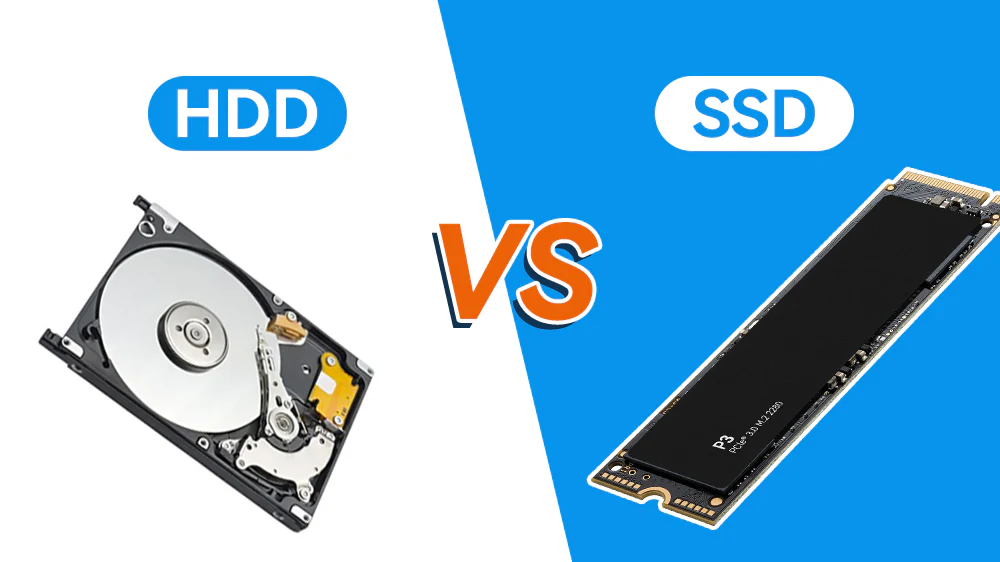
A magnetic disk drive stores data on spinning magnetic platters. A mechanical arm with a read-write head floats nanometers above the surface, seeking the correct track and sector for every read or write operation. The platter must rotate to the correct position, and the arm must move to the right track. These physical movements take milliseconds—an eternity in computing terms.
A solid-state drive contains no moving parts. Data lives in flash memory cells organized on a circuit board. The controller chip addresses these cells electronically, retrieving information without mechanical delay. Access times drop from milliseconds to microseconds. There are no platters to spin up, no heads to seek, and no vibration or noise from physical motion. This architectural difference shapes every characteristic users care about: speed, noise, durability, power consumption, form factor, and cost per gigabyte.
Speed: The Most Noticeable Difference
Speed separates SSDs and HDDs more dramatically than any other metric. Booting Windows from an HDD takes 30 to 60 seconds. From an SSD, it takes 10 to 15 seconds. Opening a large application like Adobe Photoshop from an HDD involves waiting while the hard drive grinds through loading hundreds of files. From an SSD, the application appears nearly instantly.
Sequential speed measures how quickly the drive reads or writes large contiguous files. A modern SATA SSD achieves 500 to 550 megabytes per second. A 7200 RPM HDD manages 150 to 200 megabytes per second. NVMe SSDs connected via PCIe push 3,500 to 7,000 megabytes per second, leaving HDDs in another universe entirely.
Random speed matters more for daily use. It measures how quickly the drive handles small, scattered requests—loading an operating system, launching applications, or browsing a file-heavy folder. HDDs manage 1 to 3 megabytes per second in random reads. The speed of SATA SSDs increases to between 90 and 100 megabytes per second. NVMe SSDs exceed 1,000 megabytes per second. This is why an SSD makes an old computer feel new, while an HDD makes a new computer feel old.
| Speed Metric | 7200 RPM HDD | SATA SSD | NVMe SSD (Gen 4) |
|---|---|---|---|
| Sequential Read | 150-200 MB/s | 500-550 MB/s | 5,000-7,000 MB/s |
| Random Read (4K) | 1-3 MB/s | 90-100 MB/s | 1,000-2,000 MB/s |
| Boot Time (Windows) | 30-60 seconds | 10-15 seconds | 8-12 seconds |
| Game Level Load | 45-90 seconds | 15-25 seconds | 10-15 seconds |
Durability and Reliability
Mechanical components fail. HDDs contain motors, bearings, actuator arms, and magnetic heads—all subject to wear. The average HDD lasts three to five years under typical use, though many run longer. Sudden impacts while operating can cause head crashes, scraping the magnetic surface and destroying data instantly. This makes HDDs risky for laptops that travel.
SSDs resist physical shock because they lack moving parts. Dropping a laptop with an SSD rarely damages the drive. SSDs tolerate temperature extremes, vibration, and magnetic fields better than HDDs. Their theoretical lifespan depends on write endurance—flash memory cells wear out after thousands to tens of thousands of write cycles.
For typical consumers, writing endurance is a non-issue. A 1 TB SSD rated for 600 terabytes written lasts for decades at normal usage patterns. Heavy video editors, database administrators, and cryptocurrency miners writing terabytes monthly face endurance concerns. Average users will replace the SSD for capacity or speed reasons long before it wears out. Both technologies can fail unexpectedly. SSDs sometimes fail more abruptly than HDDs, which may show warning signs like clicking noises or SMART errors. Maintain backups regardless of your storage choice. No drive is immortal.
Capacity and Cost Per Gigabyte
HDDs win on raw capacity per dollar. A 4 TB HDD costs roughly the same as a 1 TB SSD. For media libraries, game collections, or backup archives where speed matters little, HDDs provide economical bulk storage. Data centers and NAS devices overwhelmingly use HDDs for this reason.
SSDs dominate smaller capacities where the price gap narrows. A 500 GB SSD is affordable enough that most new computers include one by default. The price per gigabyte of SSDs has dropped 80% over the past five years, and the gap continues shrinking. For primary storage under 2 TB, SSDs are now the sensible default.
| Capacity | Typical HDD Price | Typical SATA SSD Price | Typical NVMe SSD Price |
|---|---|---|---|
| 500 GB | $25-35 | $40-50 | $45-60 |
| 1 TB | $40-50 | $70-90 | $80-110 |
| 2 TB | $50-70 | $130-160 | $140-180 |
| 4 TB | $80-100 | $280-350 | $300-400 |
Noise, Power, and Form Factor
HDDs generate audible noise from spinning platters and seeking heads. In quiet rooms, the intermittent grinding during heavy file access becomes noticeable and irritating. SSDs are entirely silent, improving focus and reducing ambient noise during recording or calls.
Power consumption differs significantly. HDDs draw 6 to 15 watts when active and still consume 1 to 3 watts idle. SSDs use 2 to 5 watts actively and nearly nothing idly. In laptops, this advantage translates to 30 to 60 minutes of additional battery life simply by choosing SSD over HDD. For desktops, the difference is minor on electricity bills but contributes to heat generation.
Physical size favors SSDs dramatically. A 2.5-inch SSD weighs grams and fits in ultrathin laptops. An HDD requires 3.5 inches for desktop sizes or 2.5 inches for slower laptop models, with significantly greater thickness and weight. M.2 NVMe SSDs are smaller than a stick of gum, enabling the thinnest modern laptops and compact desktop builds.
Use Cases: When to Choose What
Choose an SSD If:
- You boot your operating system and run applications from this drive
- You use a laptop that travels or moves frequently
- You value silence in your working environment
- You edit photos, video, or audio and need responsive scratch disk performance
- You play modern games with large assets and long load screens
- You want your computer to feel fast and responsive for daily tasks
Choose an HDD If:
- You need 4 TB or more of storage on a limited budget
- You store large media libraries accessed sequentially—movies, music, photos
- You maintain backup archives or long-term cold storage
- You run a network-attached storage device or server where capacity trumps speed
- You understand the speed limitations and accept them for cost savings
Choose a Hybrid Approach If:
The most practical solution for many users combines both technologies. Install a 500 GB to 1 TB SSD as your primary drive for the operating system, applications, and active projects. Add a 2 TB to 4 TB HDD for media, games you are not currently playing, backups, and archives. This delivers SSD responsiveness where it matters and HDD capacity where it does not.
Some systems offer Intel Optane or similar caching solutions that accelerate HDD performance by storing frequently accessed data on a small SSD module. These hybrid configurations improve HDD responsiveness but add complexity and rarely match pure SSD performance.
Making the Transition from HDD to SSD
Upgrading an existing computer from HDD to SSD is one of the most impactful performance improvements possible. The process involves cloning your existing drive or reinstalling the operating system fresh. Cloning copies every byte from the old drive to the new one, preserving your setup, applications, and files. Software like Macrium Reflect, Clonezilla, or manufacturer tools handle this. Ensure your SSD is large enough to hold all existing data. After cloning, swap the drives physically and boot from the SSD.
Fresh installation provides cleaner results. Back up your data, install the SSD, load your operating system from USB media, and restore files afterward. This eliminates years of accumulated clutter and registry debris. It takes longer but yields a more stable, responsive system.
After installing an SSD, verify your BIOS or UEFI boots from it and that the operating system recognizes it correctly. Enable AHCI mode in BIOS before installation for optimal SSD performance. TRIM support, which allows the operating system to inform the SSD which blocks are no longer in use, should be enabled automatically on modern systems.
Future Outlook
HDDs continue improving in capacity, with 20 TB and larger models available for enterprise and enthusiast use. However, their speed and mechanical nature limit them to niche bulk storage roles. SSD prices fall annually while capacities rise. Within five years, SSDs will likely dominate even large-capacity markets where HDDs currently hold advantage.
Emerging technologies like PCIe 5.0 NVMe drives promise 10,000 megabytes per second or faster, further widening the gap. For consumers, the decision becomes simpler each year: SSD for anything you interact with directly, HDD only for cheap bulk storage of infrequently accessed data.
Related Articles
- How to Speed Up a Slow Windows Laptop
- How to Upgrade Your Laptop RAM Step by Step
- How to Extend Your Laptop Battery Life
- How to Choose the Right Laptop for Remote Work
- How to Properly Dispose of an Old Hard Drive
Sources and References
- StorageNewsletter. (2026, January 15). SSD vs. HDD Market Trends: Price Parity Analysis for Consumer Storage. Retrieved from storagenewsletter.com
- Tom’s Hardware. (2025, November 20). Best SSDs 2025-2026: SATA, NVMe, and External Drives Tested. Retrieved from tomshardware.com
- Backblaze. (2025). Hard Drive Stats for 2025: Annual Failure Rates and Reliability Data. Backblaze Drive Stats Report.
- Intel Corporation. (2025). Solid-State Drive Technology and NVMe Interface Performance Whitepaper. Intel Product Documentation.
- Seagate Technology. (2026). HDD vs. SSD: Total Cost of Ownership for Data Center and Consumer Applications. Seagate Technical Brief.