
Last Updated: June 2026 | Reading Time: 9 minutes
What RAM Actually Does
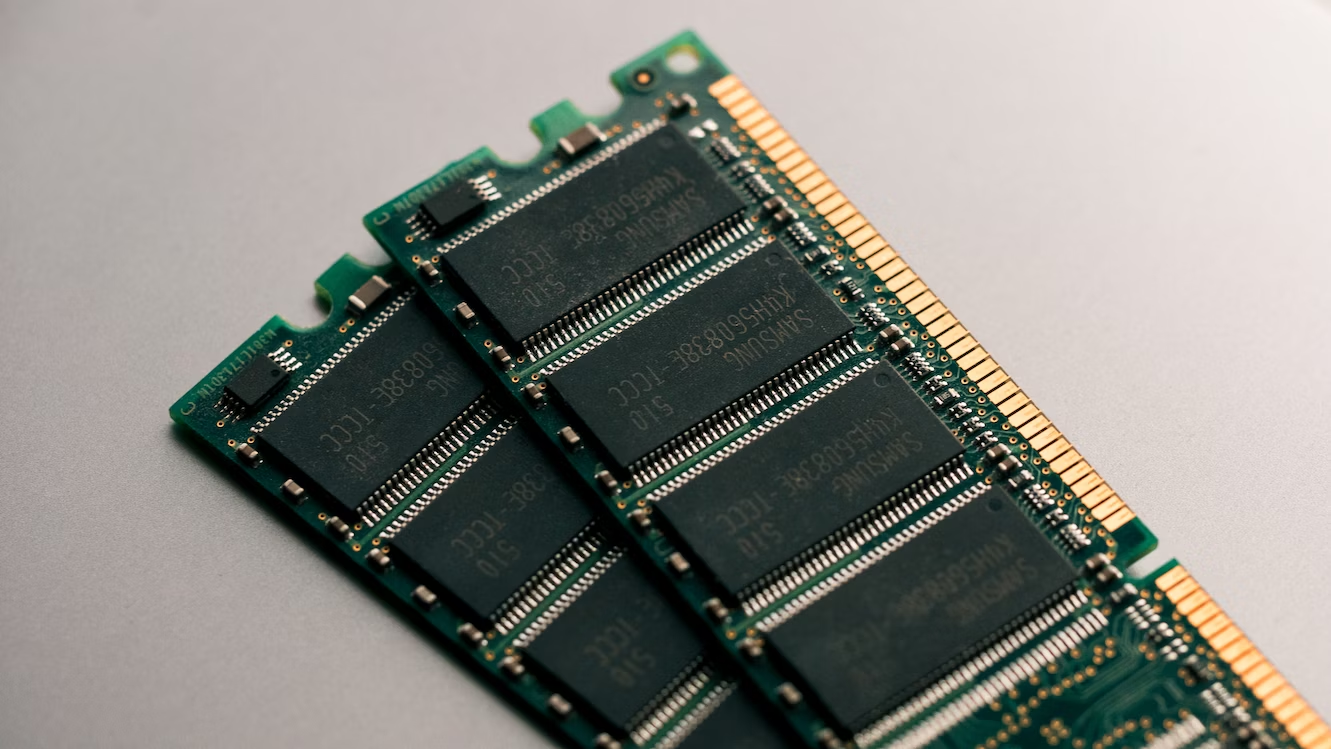
Random Access Memory serves as your computer’s active workspace. Unlike storage drives that retain information permanently, RAM holds data only while powered. When you open an application, the operating system loads its executable code and active data from storage into RAM. The processor then accesses this memory thousands of times per second to execute instructions and manipulate information.
Think of storage as a filing cabinet and RAM as your desk. A larger desk lets you spread out more documents, reference multiple files simultaneously, and work without constantly walking back to the cabinet. When the desk fills, you must return files to storage before retrieving new ones. This back-and-forth is what makes insufficient RAM feel sluggish—your computer spends more time swapping than working.
RAM speed, measured in megahertz, and latency, measured in clock cycles, also influence performance. Faster RAM feeds the processor more quickly, reducing wait times between operations. However, capacity generally matters more than speed for typical users. A system with ample slower RAM outperforms one with limited fast RAM.
Understanding RAM Capacity Tiers
4 GB: Obsolete for Modern Use
Four gigabytes sufficed a decade ago when operating systems and applications consumed less memory. Today, Windows 11 idles at 3 to 4 GB before launching any user applications. A 4 GB system immediately begins swapping to storage, creating persistent lag. Chrome alone consumes 1 to 2 GB with a handful of tabs. Microsoft Office adds another 500 MB to 1 GB.
Only specialized lightweight Linux distributions or embedded systems function adequately with 4 GB. For general computing, this tier is effectively obsolete. If your computer has 4 GB, upgrading should be your highest priority regardless of other specifications.
8 GB: The Bare Minimum
Eight gigabytes handles basic tasks: web browsing with moderate tabs, office applications, email, video streaming, and light multitasking. You can run a browser, a document editor, and a communication app simultaneously without severe swapping. However, approaching the limit happens quickly.
Open twenty browser tabs, launch a spreadsheet, and join a video call. Memory usage climbs toward 7 GB. The system compensates by compressing inactive pages and writing to the page file on storage. An SSD makes this tolerable. An HDD makes it painful. Gaming is largely impossible at this tier beyond lightweight indie titles.
Eight gigabytes suits budget systems for students, elderly users, or dedicated single-purpose machines like point-of-sale terminals. Anyone doing genuine multitasking or running modern applications should consider this the floor, not the target.
16 GB: The Sweet Spot
Sixteen gigabytes accommodates the vast majority of users comfortably. You can maintain fifty browser tabs, run office suites, stream music, and keep communication tools active without concern. Modern games load and run smoothly. Content creation in Photoshop or Lightroom operates adequately for moderate projects.
This tier handles typical professional workflows: coding with multiple IDE instances, running local servers for web development, managing virtual machines with modest allocations, and editing 1080p video. You rarely encounter memory pressure unless deliberately stress-testing the system.
For gamers, 16 GB meets current requirements and provides headroom for future titles. Game engines increasingly preload assets to reduce loading screens. Open-world games with large textures consume 8 to 12 GB alone. Sixteen gigabytes prevents background applications from competing with the game for memory.
32 GB: Professional and Enthusiast Territory
Thirty-two gigabytes serves users whose workflows demand substantial memory. Video editors working with 4K or 8K footage need this space for timeline caching, preview rendering, and background encoding. Three-dimensional modelers manipulating complex scenes with high-resolution textures exhaust 16 GB quickly.
Developers running multiple virtual machines, Docker containers, or large compile jobs benefit significantly. Data scientists loading datasets into memory for analysis avoid the performance cliff of disk-based processing. Musicians with extensive sample libraries in digital audio workstations eliminate loading delays and voice-stealing artifacts.
Heavy multitaskers who genuinely use many demanding applications simultaneously—perhaps a developer running an IDE, local database, browser with documentation, and communication tools—find 32 GB liberating rather than excessive.
64 GB and Beyond: Specialized Domains
Sixty-four gigabytes and higher configurations address niche professional requirements. 8K video editing, complex visual effects compositing, large-scale scientific simulations, and extensive virtualized environments consume this capacity. Extreme multitasking scenarios like running dozens of browser profiles for web development testing or hosting multiple game servers simultaneously also justify the investment.
For typical consumers and even most professionals, 64 GB represents diminishing returns. The money spent on excess RAM often benefits system performance more when directed toward a faster processor, better graphics card, or larger SSD.
| Capacity | Best For | Limitations |
|---|---|---|
| 4 GB | Lightweight Linux, embedded systems | Cannot run modern Windows or macOS comfortably |
| 8 GB | Basic browsing, office work, single applications | Multitasking causes swapping, limiting gaming. |
| 16 GB | General users, gamers, light content creation | 4K video, heavy VMs, complex 3D may struggle |
| 32 GB | Professionals, enthusiasts, 4K editing, VMs | 8K video and massive datasets may need more |
| 64 GB+ | Specialized workstations, servers, extreme use | Diminishing returns for typical users; costly |
How Different Workloads Consume RAM
Memory usage varies dramatically based on what you actually do. Understanding typical consumption helps you assess your needs without guessing.
Web Browsing
Modern websites are applications, not documents. Each tab runs JavaScript, loads media, and maintains state. A complex web application like Gmail or Google Maps consumes 200 to 400 MB. A news article with heavy advertising might use 100 to 150 MB. Streaming video in high resolution adds hundreds more. Twenty tabs easily consume 4 to 6 GB. Fifty tabs approach 10 GB or beyond.
Browser extensions multiply this. Ad blockers, password managers, VPNs, and developer tools each add overhead. The browser itself fragments memory over long sessions, gradually consuming more until restarted.
Office and Productivity
Microsoft Word with a large document uses 300 to 500 MB. Excel with extensive formulas and datasets climbs toward 1 GB. PowerPoint with embedded media consumes similarly. Running the full Office suite simultaneously with Outlook and OneNote demands 2 to 3 GB before considering other applications.
Alternative suites like LibreOffice use less memory but still require hundreds of megabytes per application. Cloud-based office tools in browsers add the browser overhead on top of the application itself.
Gaming
Game memory requirements span a vast range. Indie titles and older games function with 2 to 4 GB. Modern AAA releases list 16 GB as recommended, with some approaching 20 to 24 GB usage when including background operating system overhead. Open-world games with streaming textures and large environments consume the most.
Background applications while gaming matter significantly. Streaming software like OBS, Discord voice chat, browser guides, and monitoring tools add 2 to 4 GB on top of the game itself. A system with 16 GB handles this comfortably. Eight gigabytes forces you to close everything else.
Content Creation
Adobe Photoshop allocates memory based on available capacity. With 8 GB, it might use 4 to 5 GB, constantly flushing caches to disk. With 32 GB, it consumes 20 GB for undo history, clipboard contents, and filter previews. The experience transforms from sluggish to fluid.
Video editing scales aggressively. Premiere Pro and DaVinci Resolve cache rendered previews in RAM for scrubbing and playback. 4K footage at high bitrates demands 2 to 4 GB per minute of timeline cache. Complex color grading and effects layers multiply this. 16 GB permits basic 4K editing. 32 GB enables comfortable workflows with longer timelines and more effects.
Development and Virtualization
Integrated development environments like Visual Studio, IntelliJ, or Android Studio consume 2 to 4 GB alone. Running a local web server with a database adds another 1 to 2 GB. Docker containers allocate hundreds of megabytes to gigabytes each depending on their purpose.
Virtual machines are the most RAM-intensive common application. Allocating 4 GB to a Windows virtual machine leaves the host operating system competing for the remainder. Running multiple VMs simultaneously demands 32 GB or more to avoid constant swapping in all environments.
RAM Speed and Configuration
Capacity dominates performance, but speed and configuration matter too.
Dual Channel vs Single Channel
Modern processors support dual-channel memory, accessing two RAM modules simultaneously for doubled bandwidth. A single 16 GB module runs in a single channel, halving memory bandwidth. Two 8 GB modules installed in paired slots operate in dual channel mode, which significantly improves performance for integrated graphics and memory-intensive tasks.
Always install RAM in matched pairs when possible. Check your motherboard or laptop manual for slot pairing—usually slots 1 and 3, or 2 and 4, on desktops. Laptops with two slots should both be populated with identical modules.
Speed (MHz) and Latency (CAS)
DDR4 memory commonly runs at 3200 MHz. DDR5 starts at 4800 MHz and reaches 6400 MHz or higher in enthusiast configurations. Higher frequency transfers more data per second. Lower CAS latency means less waiting between requests.
For most users, the difference between 3200 MHz and 3600 MHz DDR4 is marginal—perhaps 2 to 5% in specific benchmarks. The jump from DDR4 to DDR5 is more noticeable, offering 10 to 20% improvement in bandwidth-sensitive tasks. However, capacity remains the primary concern. A system with ample 3200 MHz RAM outperforms one with limited 5600 MHz RAM.
Checking Your Current RAM Usage
Before upgrading, verify whether RAM is actually your bottleneck.
On Windows, open Task Manager with Ctrl+Shift+Esc and select the Performance tab. Click Memory to view usage graphs. If usage consistently exceeds 80% during normal use, expansion helps. If it sits below 50%, other components likely limit performance.
On macOS, open Activity Monitor from Applications > Utilities and click the Memory tab. The Memory Pressure graph at the bottom indicates whether your system needs more RAM. Green means sufficient. Yellow indicates occasional swapping. Red means consistent memory pressure, requiring an upgrade.
On Linux, run the command free -h in a terminal. Examine the available column, not free, as Linux aggressively caches data in otherwise unused memory. Consistently low available memory with high swap usage indicates a need for expansion.
When to Upgrade vs When to Replace
Adding RAM extends a computer’s useful life economically. However, some systems are not worth upgrading.
If your laptop or desktop uses DDR3 memory, replacement makes more sense. DDR3 is obsolete, incompatible with modern processors, and often costs more than newer DDR4 or DDR5 due to scarcity. The performance ceiling of DDR3 systems limits benefits regardless of capacity.
If your processor is a decade old, more RAM cannot compensate for slow single-threaded performance. A Celeron or old Core i3 with 32 GB still struggles with modern applications. In these cases, a new system with adequate base RAM outperforms a maxed-out antique.
If your motherboard supports only 16 GB maximum and you already have 16 GB, replacement is mandatory for more. Check specifications before assuming upgrade paths exist.
Related Articles
- How to Upgrade Your Laptop RAM Step by Step
- SSD vs HDD: Which Storage Type Do You Need
- How to Speed Up a Slow Windows Laptop
- How to Choose the Right Laptop for Remote Work
- How to Extend Your Laptop Battery Life
Sources and References
- Crucial Technology. (2026). System Scanner: Memory Requirements by Application and Use Case. Micron Technology Documentation.
- Tom’s Hardware. (2025, December 5). How Much RAM Do You Need in 2026? Gaming, Productivity, and Professional Benchmarks. Retrieved from tomshardware.com
- Apple Inc. (2026). Mac Memory and Storage: Understanding Activity Monitor and Upgrade Options. Apple Support Documentation.
- Microsoft Corporation. (2025). Windows 11 System Requirements and Memory Management Technical Overview. Microsoft Docs.
- Steam Hardware Survey. (2026, January). PC Gaming Hardware Trends: RAM Distribution and Game Requirements Analysis. Valve Corporation.