
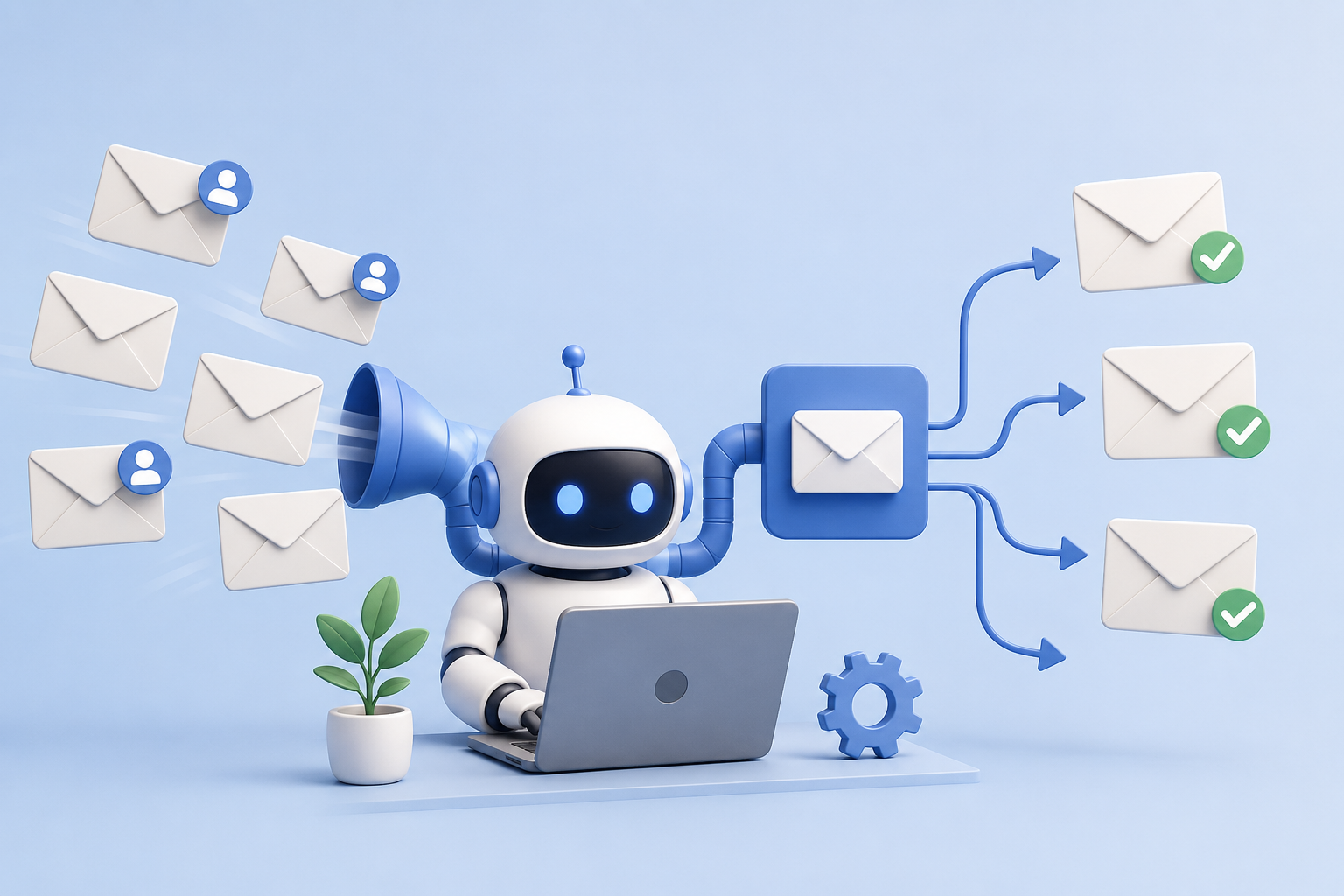
Email is one of the most effective corporate communication tools, yet it can also waste time. If you operate a small business, manage customers, perform customer service, freelance, or answer everyday requests, you may have experienced addressing the same questions. Someone queries your price. Other people desire your work hours. The client asks when the job will finish. A consumer wishes to change their password, request a consultation, or check order progress. Manual answering may seem OK at first. However, daily emails of the same kind steadily consume your time, distract you, and delay more vital tasks.
This is where email response automation helps. Automating repetitious email responses does not replace human interaction. It helps you reply faster, keep organized, eliminate errors, and provide information without delay when done correctly. This post explains how to automate repetitive email answers easily. If you use Gmail, Outlook, corporate email software, or a customer care tool, these tips will save you time while keeping your emails clear, useful, and human.
Why Repeated Email Responses Waste Time
Most underestimate how long they spend drafting such responses. One email may take two or three minutes to answer, but those minutes add up. A day of replying to 20 comparable emails may cost you an hour of labor that could be automated. Typing time is not the main issue. Repetitive emails also distract. A typical query arrives in your inbox while you’re engaged on an essential assignment. After opening the message, typing a response, and sending it, you try to resume your work. Your attention was lost even if the reply was brief.
Manual responses might sometimes be inconsistent. One day you may respond in detail. On a hectic day, you may submit a shorter reply and miss vital information. It might confuse clients and make your firm seem disorganized. Automated email answers let you provide fast, meaningful, and consistent responses. They let you answer frequent questions without beginning over.
The Meaning of Email Response Automation
Automated email response uses tools, templates, rules, or workflows to answer frequent emails quicker. This can range from utilizing a preset email template to automating replies based on keywords, forms, customer activities, or support categories. If customers routinely email you about your services, you may prepare a pre-written answer that describes what you provide, how it works, and how to arrange a call. Replace typing that answer with the template, edit one or two lines, and send.
Other times, the answer is automated. People who fill out your website’s contact form can quickly receive a confirmation email confirming you got their message and will respond shortly. Order confirmations are automatically sent to customers. If someone requests a downloaded guide, your system may provide it automatically. Keep the personal touch. Remove excessive repetition to focus on important talks.
Find Your Most Common Email Questions.
Know what emails are taking up your time before automating. Start with your inbox. Check your recent mail for repeating queries. Pricing queries, appointment requests, order status questions, refund or cancellation questions, onboarding instructions, meeting confirmations, follow-up reminders, document requests, and business information like opening hours and location are common.
Not all emails need automation. Trying to automate everything instantly might confuse the process. Start with your top 5-10 most-answered messages. The largest time savings come from these email automation solutions. Group repeated emails by subject. Create categories for new client queries, support questions, project updates, billing questions, appointment confirmations, and follow-up communications. Creating usable templates and automation rules is easy after this one step.
In Gmail and Outlook, use canned responses
Email automation beginners can utilize stored templates easily. Gmail and Outlook let you save email answers for later use. Gmail calls this function “templates.” A message can be written once, saved as a template, and reused. Customer questions, follow-ups, meeting details, proposal replies, and common support answers benefit from this.
Quick Parts, templates, and signatures are available in Outlook depending on your version and settings. These techniques prevent repetitive writing. Templates let you maintain control. Sending the email is optional. Review the message, change the text, add the person’s name, and add details. This is ideal for repetitive answers that need some individuality. Starting here is generally preferable for novices. Complex software is unnecessary. Keep your finest replies and utilize them when required.
Organize Emails with Filters and Rules
Automation goes beyond responses. It also involves better inbox management. Sender, subject line, keywords, and other criteria can sort emails with filters and rules. One rule can send all billing emails to a “Billing” folder. You may classify website contact form messages as “New Leads.” Mark newsletters as read or put them in a folder to avoid distractions at work.
Organizing your inbox speeds up response. You may also make category templates. If an email says “Pricing Inquiry,” you know which answer template to use. You can handle a “Support Request” message with the correct procedure. Rules and filters simplify thinking. You can let your email system categorize messages instead of scanning and interpreting them.
Follow-Up Emails Automatically Without Pushing
Automation saves time on follow-up emails too. Many companies lose consumers by not following up. A person may request a quotation, receive it, and then disappear. Even if they were intrigued, the conversation may finish without a follow-up. Automatic follow-ups can gently remind without being pushy. Three or four days after making a proposal, you may send a follow-up email. The message may read:
“Hi [Name], I wanted to see if you reviewed the details I sent. I’m happy to answer queries or change the plan.”
A straightforward, courteous, and useful message. It lets them answer without pressure. Follow-up automation works for sales inquiries, abandoned bookings, consultation requests, unpaid bills, feedback, onboarding, and project updates. Keep your tone polite. Avoid sending too many follow-ups and make sure they relate to the person’s prior behavior.
Utilize Customer Support Tools for High Email Volumes
If you get many customer emails, a conventional inbox may not be adequate. In that instance, customer care software can professionally automate repetitive email answers. Support solutions include stored responses, ticket routing, auto-replies, tags, internal notes, client history, and workflow automation. Teams benefit from these features since several individuals can manage emails without losing their interactions.
For instance, a support solution can automatically send refund concerns to billing, technical difficulties to support, and partnership inquiries to business development. It may also immediately confirm assistance requests. This approach helps organizations prevent missed emails and redundant answers. It also improves customer service by swiftly routing queries to the correct individual. A comprehensive support platform may not be necessary for small firms initially, but as email volume rises, it may be wise.
Email Automation Still Needs Personalization
Email automation may make communication frigid. Overly generic automated messages might cause this. When done appropriately, automation and customization may function together. Emails feel more natural when they include the recipient’s name. But genuine personalization extends beyond names. It implies tailoring the message to the situation.
For instance, new leads should get different responses than old customers. Someone seeking technical assistance should not receive a sales pitch. Clients waiting for project updates and free guide downloaders require separate tones. Email automation should send the correct message at the right time. This is why multiple templates for different scenarios are crucial. A few well-organized templates always outperform one generic response for everything. Read an automatic answer from the reader’s perspective before sending or activating it. Does this solve their question? Sound clear? Does it suggest future steps? Feels human and respectful?
Avoid Over-Automating Important Conversations
Automation is useful, but not all emails should be automated. Not all talks demand personal attention. Humans are needed for complaints, sensitive customer concerns, difficult project queries, partnership negotiations, and high-value sales engagements. Automation of short, repeated, low-risk communications and personal handling of judgment, empathy, negotiation, or deep knowledge is best.
An automatic reply can acknowledge a complaint was received, but a human person should analyze the matter and respond. Although a template might help you plan your reply, it should be individualized. Over-automation might overlook customers. Under-automation wastes time. The ideal strategy is balance. Automate regular communication and utilize your saved time to focus on important correspondence.
Monitor and Improve Automated Email Responses
Keep your automatic email answers in mind. Review email templates and workflows regularly. Your business, prices, services, and response times may vary. Outdated automatic responses might be confusing. Templates should be reviewed every few months. Make sure the data is correct. Check for lengthy, ambiguous, or missing-step messages. Consider client feedback. Keep getting the same follow-up question after sending your automated email? Improve it.
Track basic outcomes too. Is anyone responding to your follow-up emails? Does managing support requests get easier? Are fewer individuals asking for fundamental things that may have been provided earlier? These indications can indicate email automation success. The finest automated email systems aren’t one-time projects. Improve over time.
Repetitive Email Response Automation Best Practices
The greatest email automation solutions are straightforward and customer-focused. Do not complicate the procedure. Test your messages and refine them slowly. Use informal words instead of corporate speak. Emails should be brief yet informative. Include a clear next step so the reader understands what to do after reading.
Be truthful in automatic answers. Say your response time is two business days. Explain cost based on project specifics. Explain what you require from customers who need additional information. Clarify your topic lines. Best to use “We received your message” or “Next steps for your consultation request” instead of “Important update.” Automation should enhance communication, not replace it. Provide personal responses as needed.
Conclusion
Automating repeated email answers can improve your inbox management. It saves time, responds faster, reduces errors, and builds professionalism with customers, clients, and leads. Simple starts are great. Find the emails you respond to most often, develop useful templates, set up basic automatic answers, filter messages, and apply follow-up automation when appropriate. You may upgrade to customer support platforms or process automation technologies as your needs develop.
Automating emails doesn’t sound robotic. It’s about improving communication consistency, efficiency, and utility. Automation and intelligent customization may improve replies and free up time for meaningful work.
FAQs
1. How may repetitive email answers be automated easily?
Starting with email templates is easy. Gmail, Outlook, and many corporate email programs let you save and reuse frequent replies. This speeds up response time and lets you tailor messages before sending.
2. Sound personable in automated email responses?
Yes, automated email messages may sound personal if written naturally and appropriate. Avoid generic messages and use pleasant language and important facts. Specific, useful templates work best for personalization.
3. Should all email responses be automated?
Not all emails should be automated. Simple and repetitious communications can be automated, but difficult queries, complaints, sensitive situations, and crucial customer encounters should be addressed directly. While saving time, automation should not replace human judgment.
4. Email types ideal for automation?
Common queries, confirmations, appointment reminders, follow-ups, onboarding instructions, order updates, support acknowledgments, and FAQs are best automated. These messages are frequently predictable and don’t require a distinct response.
5. How often should I change email templates?
Review your email templates every few months or when your business information changes. Keep prices, response times, service descriptions, links, policies, and instructions updated to keep automated answers accurate and useful.
6. Email automation: beneficial for small businesses?
Email automation helps small businesses save time and respond faster without a huge crew. A small business may seem more organized and professional with simple layouts and automated confirmation emails.